
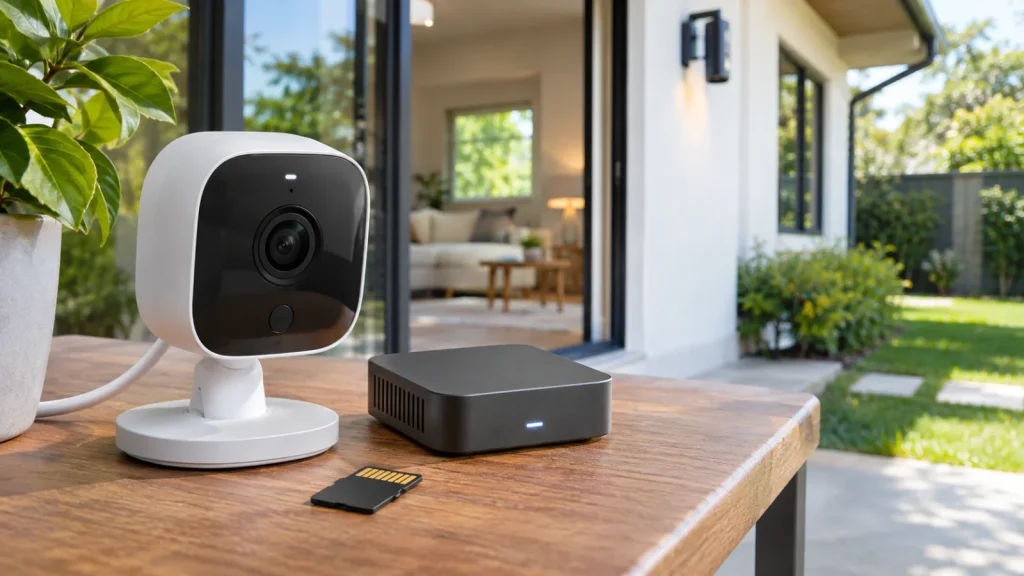
If you want a security camera that never asks for a monthly fee, the one I’d recommend to most people is the Tapo C120. It records to a microSD card, works indoors or outdoors, and includes person, pet and vehicle detection without a paid plan. If you cannot run a power cable to the spot you want to watch, I’d go for the solar-powered eufy SoloCam S220, a wire-free alternative with storage built into the camera itself. For a wide driveway or yard, I like the Reolink Argus 4 Pro, which covers a 180-degree view in 4K, and for rooms inside the house I’d use the pan-and-tilt eufy Indoor Cam C220, which watches a whole room from one corner.
Monthly camera plans look cheap one at a time. Add three or four cameras, multiply by twelve months and then by the five or more years a camera stays on your wall, and a subscription can cost several times more than the hardware. That maths is exactly why I always look for cameras that record locally first. The catch is that “no subscription” does not always mean “nothing is held back”. Some cameras record locally but reserve smart alerts, clip history or even the ability to watch recordings for a paid plan. Others give you nearly everything for free.
In this guide I separate what each pick does for free from what costs extra, explain the storage options in plain language, and walk you through placement, power, privacy and the mistakes that leave people without footage when they need it. By the end you will know the true long-term cost of each camera before you buy.
Affiliate disclosure: As an Amazon Associate I earn from qualifying purchases. I may earn a commission when you buy through my links, at no extra cost to you.
Quick picks: choose by where the camera will go
- Near an outlet, indoors or out: Tapo C120. Low cost, 2K video, weatherproof body and a microSD slot that takes large cards.
- No outlet nearby: eufy SoloCam S220. A built-in solar panel and on-board storage, with no card and no plan to buy.
- A wide driveway or yard: Reolink Argus 4 Pro. A 180-degree 4K view from a single battery camera, with color night vision.
- Inside the home: eufy Indoor Cam C220. 360-degree pan and tilt, motion tracking and a privacy mode.
Features locked behind plans change from time to time, so I explain how to check the current terms before you buy.
Compare the four cameras
| Camera | Power | Free local storage | Resolution | Recording style | Main compromise | Price |
|---|---|---|---|---|---|---|
| Tapo C120 | Plug-in | microSD card, up to 512GB (sold separately) | 2K | Continuous or motion | Needs an outlet within reach of its cord | $29.99(as of Nov 29, 2026 2:56 PM UTC+5 – Details)View on Amazon |
| eufy SoloCam S220 | Battery with built-in solar panel | 8GB built in | 2K | Motion events | No continuous recording | View on Amazon |
| Reolink Argus 4 Pro | Battery; solar panel optional | microSD card (sold separately), hub or NVR | 4K, 180-degree view | Motion events | Costs the most; battery not removable | View on Amazon |
| eufy Indoor Cam C220 | Plug-in | microSD card, up to 128GB (sold separately) | 2K | Continuous or motion | Indoor use only | View on Amazon |
What “no subscription” should really mean
Before I go through each camera, I want to set a clear standard. I only recommend a camera as subscription-free if it meets all four of these tests without a paid plan:
- It records. Motion clips or continuous video are saved somewhere you control: a card, built-in storage, a hub or a recorder.
- You can watch those recordings remotely. Clips are viewable in the app from anywhere, not only when your phone is on the home network.
- Alerts arrive. You get a phone notification when the camera detects motion.
- Alerts are useful. Basic person detection, at least, is included, so a swaying tree does not buzz your phone fifty times a day.
All four picks pass. What varies is the extras each brand keeps for paying customers, such as cloud backup, rich notifications with a snapshot, longer clip history or advanced detection zones. I list those for each camera so there are no surprises later.
1. Tapo C120: best overall for most homes
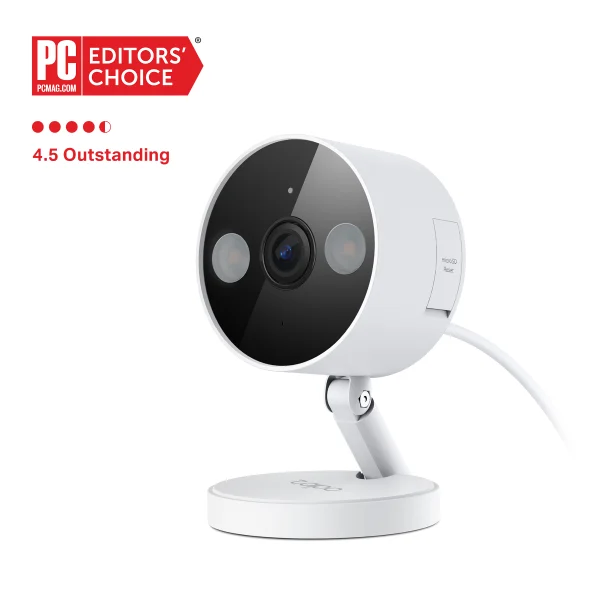
I rank the C120 first because it covers the most situations for the least money. It is a small, plug-in camera that is rated for both indoor and outdoor use, so the same model works on a covered porch, inside a garage, above a back door or on a living room shelf. I also like that buying several of the same camera keeps your app simple and your spare parts interchangeable.
What it does well
TP-Link’s product page lists 2K QHD video, an IP66 weatherproof body, color night vision and a microSD slot that accepts cards up to 512GB. I think that card limit is generous. With continuous recording at 2K, a large card can hold many days of footage before it starts overwriting; with motion-only recording, it can hold weeks. Person, pet and vehicle detection is included without a plan, which keeps alerts relevant and lets you filter out the cat walking past at 3am.
Because it plugs in, the C120 can record around the clock. In my view, that matters more than many people realise. Motion-triggered cameras sometimes start recording a second late, or miss someone who moves slowly at the edge of the frame. Continuous recording means the moment you care about is always on the card, and you can scrub back through the timeline to find it. The Tapo app also lets you set activity zones, privacy zones and schedules, and the camera works with Alexa and Google Assistant for live view on a smart display.
What still costs extra
Cloud video history and notifications that include a snapshot image belong to the optional Tapo Care plan. Standard motion alerts, smart detection and local recording do not need it. For most people I think the free tier is enough; the main reason I’d pay is off-site backup, so footage survives if someone steals the camera along with its card.
Where it falls short
It is a plug-in camera, so outdoor placement depends on a sheltered outlet within reach of its supplied cord. An extension cable can help, but the power adapter itself is not weatherproof and should stay indoors or inside a weatherproof outlet box. It connects over 2.4GHz Wi-Fi only and has no Ethernet port, so a weak signal at the far end of the yard can cause dropouts. The card sits in the camera, which means a thief who takes the camera also takes the footage, unless you pay for cloud backup.
Who should buy it
I’d choose it when an outlet is within reach, and when you want continuous recording, the lowest cost per camera or one model for every location. It is an especially good fit for garages, porches, side gates near an outdoor outlet, and indoor rooms. I’d skip it for a fence post, a detached shed without power or anywhere a cable cannot go; the SoloCam S220 fits those spots.
2. eufy SoloCam S220: best wire-free camera
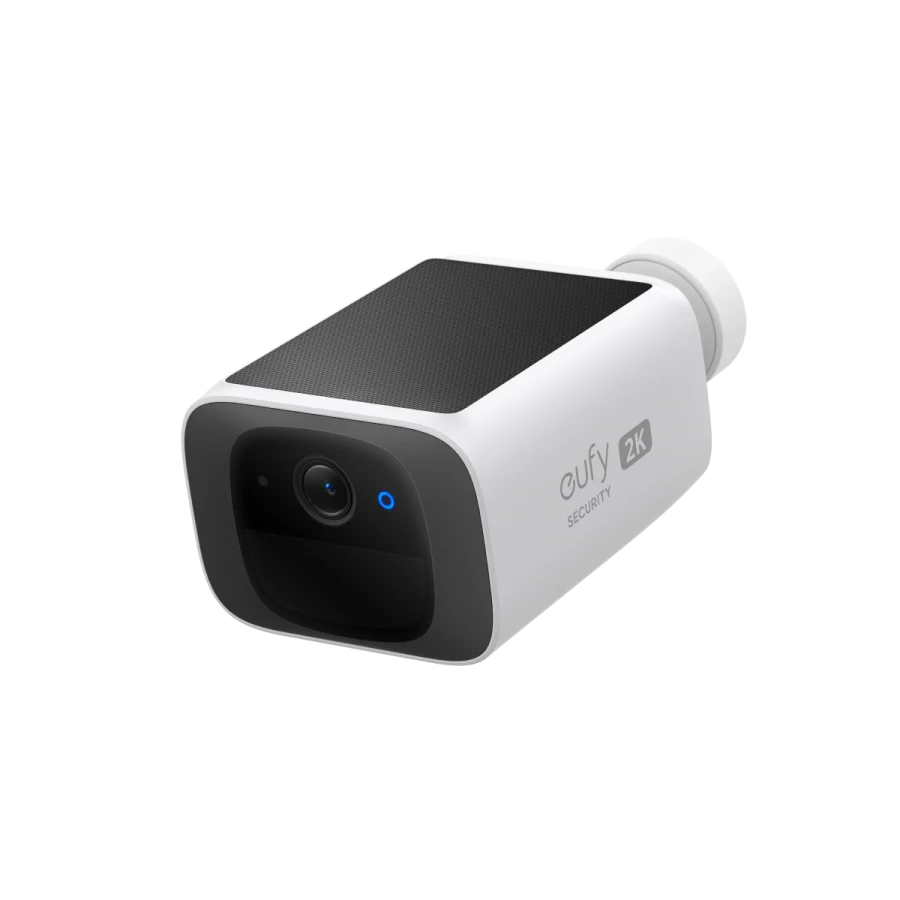
The S220 removes both the power cable and the memory card from the shopping list. A solar panel is built into the top of the camera, and eufy says about three hours of direct sun a day keeps the battery topped up. Recordings are saved to storage inside the camera, and human detection runs on the device, so there is no monthly fee for either.
What it does well
Installation is about as simple as security cameras get. You charge it once, pair it in the eufy app, and screw the mount to a wall, fence, eave or post that gets sun. There is no cable to hide, no drilling through walls and no electrician. Because the panel is part of the camera, there is also no separate solar panel to angle and wire up, which is a common source of hassle with other battery cameras.
I like that its built-in storage means nothing extra to buy and no card to fail. Human detection happens on the camera, so alerts are filtered without any cloud processing. It is rated IP67 for weather resistance, and it keeps recording motion events even if your Wi-Fi drops, then shows them in the app once the connection returns.
What still costs extra
Nothing is required. A eufy HomeBase 3 hub is an optional add-on if you later want much larger storage shared across several cameras, plus features such as cross-camera tracking. eufy also sells optional cloud plans, but the camera is fully usable without one.
Where it falls short
It records only when motion is detected, with no continuous recording, which is normal for battery cameras because recording around the clock would drain the battery in days. Built-in storage is fixed, so a camera facing a busy street will fill it faster and overwrite older clips sooner. A shaded north-facing wall will not keep it charged in winter, so you may need to take it down and charge it by USB occasionally. It uses 2.4GHz Wi-Fi and does not support Apple HomeKit.
Who should buy it
I’d choose it for a spot with daily sun and no outlet: a garden gate, a fence line, a shed, a carport or the far side of a driveway. It is also ideal for renters who cannot run cables. I’d skip it if you want round-the-clock footage; a plug-in camera with a large card is the better tool for that.
3. Reolink Argus 4 Pro: best for wide outdoor coverage
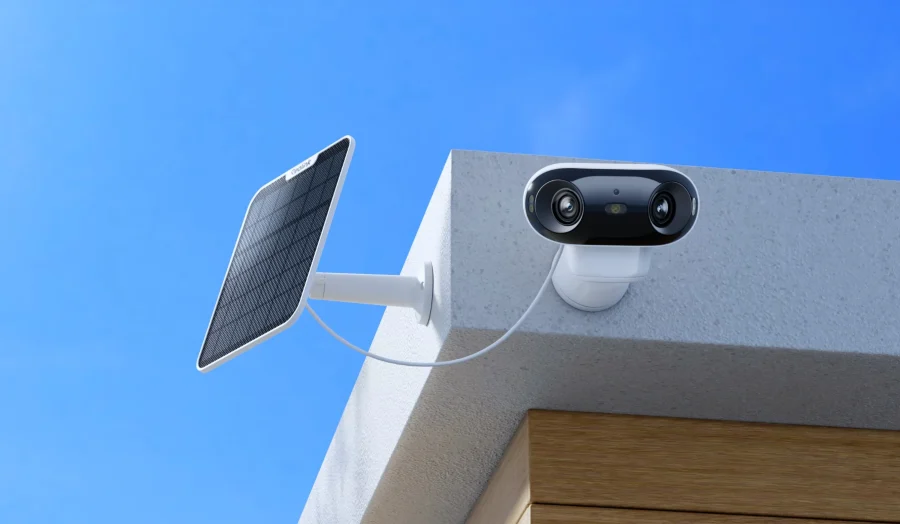
The Argus 4 Pro uses two lenses to produce a single 180-degree image in 4K, so one camera can watch a full driveway or the width of a back yard. It also captures color video at night without switching on a bright spotlight, which keeps neighbours happy and makes it harder for someone to notice the camera.
What it does well
Wide coverage is the headline for me. A normal security camera sees roughly 100 to 130 degrees, which means a corner-mounted camera often misses one side of a driveway or yard. Covering that gap usually needs a second camera. The Argus 4 Pro stitches two images into one panorama, so you watch one feed, get one set of alerts and maintain one battery. At 4K, the image also keeps enough detail to make out faces and clothing across a wider area than a 2K camera would.
I consider Reolink one of the most flexible brands when it comes to free storage. Besides a microSD card in the camera, you can record to a Reolink Home Hub or a compatible Reolink network video recorder, and those options keep footage indoors even if someone takes the camera. Person, vehicle and animal detection runs without a plan.
What still costs extra
A microSD card, and a solar panel if your bundle does not include one. Reolink’s optional cloud plan adds off-site backup, but none of the core features need it.
Where it falls short
It is the most expensive pick here, often costing two or three times as much as the C120. The battery is built in, so it cannot be swapped when it ages after several years. There is no Apple HomeKit support. And as a battery camera, it records motion events rather than continuously. The wide image also has some curvature at the edges, which is normal for panoramic lenses but noticeable if you expect a flat picture.
Who should buy it
I’d choose it when the area is too wide for a standard lens: a double driveway, a corner lot, a long back yard or a parking area. I’d skip it for a doorway or a small porch, where the C120 or S220 does the job for far less.
Buying caution: Reolink sells an Argus 4 and an Argus 4 Pro with similar listings. The Pro is the model with spotlight-free color night vision, so check the name before ordering. Also check whether the bundle includes the solar panel and a card.
4. eufy Indoor Cam C220: best for indoors
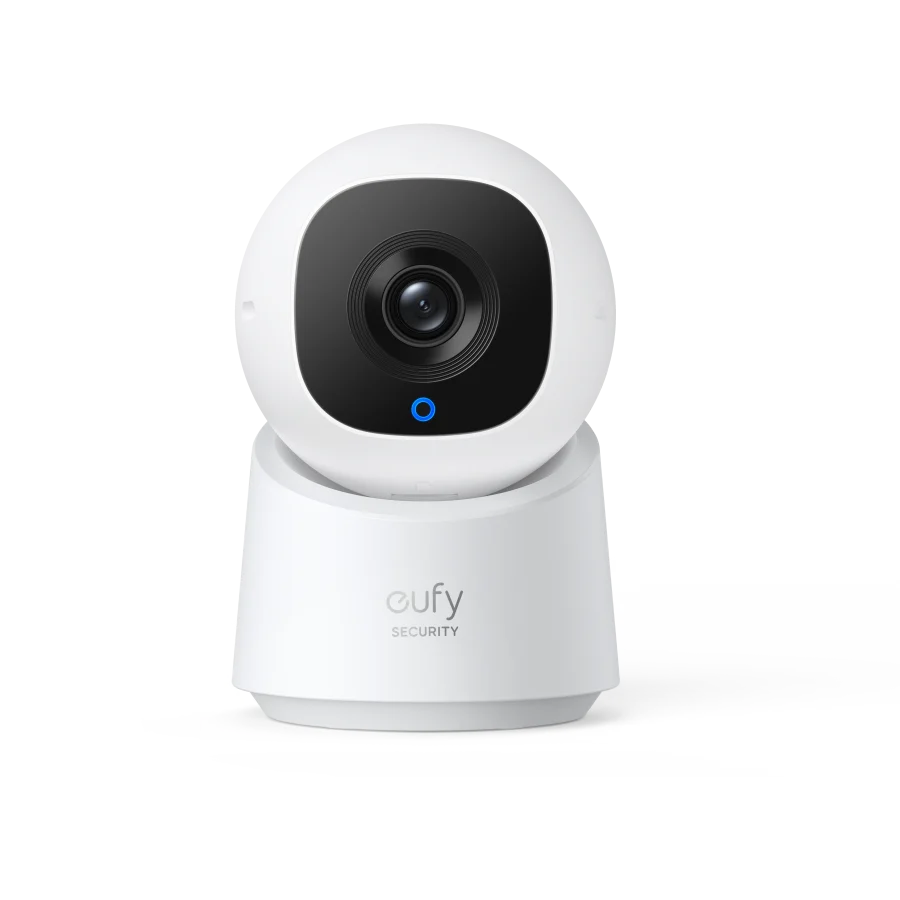
For a living room, hallway or nursery, the C220 pans a full 360 degrees and tilts, so one camera can cover a whole room and follow movement. eufy lists 2K video, two-way talk and local recording to a microSD card of up to 128GB. It works with Alexa and Google Assistant.
What it does well
A fixed indoor camera sees one direction. A pan-and-tilt camera on a shelf in the corner of a room can see the door, the sofa and the kitchen counter, either by sweeping through preset positions or by turning to follow a person or pet. That is why I see it as the best value way to watch a large open-plan space. Two-way talk lets you speak to a pet, a child home from school or a delivery driver who has let themselves into a porch. A privacy mode turns the lens away from the room when you are home, which helps everyone in the household feel more comfortable with a camera indoors.
What still costs extra
A microSD card. Cloud backup is optional.
Where it falls short
It is indoor only, uses 2.4GHz Wi-Fi only and has no HomeKit support. The motor makes a small noise as it moves, which you may hear in a quiet bedroom. Pointing it out of a window rarely works well at night, because the infrared light reflects off the glass.
Who should buy it
I’d choose it for pet monitoring, keeping an eye on a main living area while you travel, or watching the entry door from inside. For cheaper fixed indoor cameras, see my guide to the best indoor security cameras under $50.
The real cost: subscription vs local storage over five years
To show why I care so much about local storage, picture a typical setup of three cameras. Many popular brands charge a single-camera plan of a few dollars a month or a whole-home plan of roughly ten dollars a month, and those prices tend to rise over time. Across five years, a whole-home plan alone can cost more than $600, before you have bought a single camera. A one-time investment in microSD cards, by contrast, is usually under $20 per camera, and a card lasts years in a motion-only camera.
I’m not saying subscriptions are bad. Cloud backup protects footage if a camera is stolen or destroyed, and some plans add genuinely useful features. But I believe it should be a choice, not a requirement. With every camera in this guide you can start with local storage and add a plan later only if you find you need it.
How to choose a camera with no monthly fee
Check what is free and what is locked
Before buying any camera, I look for four things on the product page or support site: whether recording works without a plan, whether you can watch recorded clips in the app for free, whether person detection is included, and whether alerts arrive without a subscription. A camera that needs a plan just to view recordings is not subscription-free in any useful sense. I always search for the brand’s plan comparison page, which usually lists exactly what is free.
This is where well-known brands differ. My Blink vs Ring comparison shows how much of each brand’s feature set sits behind a plan.
Pick the storage type that suits you
- microSD card: cheapest and simplest. The weakness is that a stolen camera takes its footage with it. Good for most single cameras and indoor use.
- Built-in storage: nothing extra to buy, but capacity is fixed and cannot be upgraded. Fine for motion-only cameras in quiet locations.
- Hub or base station indoors: footage stays safe inside the house even if a camera is taken, and capacity is shared across cameras. Costs more up front.
- Network video recorder (NVR) or network drive: the most robust option for larger systems, with large hard drives and continuous recording. Best for people comfortable with a little more setup.
Buy the right microSD card
For cameras that record around the clock, I’d buy a card sold as “high endurance” or “surveillance” grade. Ordinary cards are designed for occasional photos and wear out faster under constant rewriting. Buy from a reputable seller, because counterfeit cards that report a false capacity are common online. Check the camera’s maximum supported size, and format the card in the camera’s app rather than on a computer. A 64GB to 128GB card suits most motion-only cameras; for continuous 2K recording, go larger if the camera supports it.
Match the power source to the location
Plug-in cameras can record continuously and never need charging. Battery cameras go anywhere but usually record only when they sense motion, to save power. Solar keeps a battery camera running only if the panel gets direct sun for part of each day; check the spot at different times and remember the sun sits lower in winter. A busy location drains batteries faster because the camera wakes up more often.
Check Wi-Fi at the mounting spot
Most budget cameras use 2.4GHz Wi-Fi, which travels further than 5GHz but still weakens through brick and across a yard. My habit is to stand where the camera will go and run a speed test on my phone before drilling anything. If the signal is poor, add a mesh node or extender before blaming the camera for dropped clips and delayed alerts.
Know what stops when the internet goes down
A camera with local storage can keep recording during an outage, but you will not get phone alerts or remote viewing until the connection returns. My guide to which smart home devices work without internet explains the difference between local recording and remote access.
Think about the ecosystem
If you want to see camera feeds on an Echo Show or Nest Hub, or trigger lights when motion is detected, check which voice assistants and platforms each camera supports. None of the four picks here supports Apple HomeKit, so iPhone households that want everything in the Home app should look for HomeKit Secure Video cameras, which store recordings in iCloud under an iCloud+ plan instead.
Where to place your cameras
The best camera in the wrong spot records nothing useful. These are the placement rules I follow, and they apply to every pick in this guide.
- Cover entry points first. Front door, back door, garage door and ground-floor windows facing the back are where most problems start.
- Mount high, but not too high. Around seven to nine feet up is ideal: out of easy reach, but low enough to capture faces rather than the tops of heads.
- Angle across the path, not straight down it. Motion sensors detect movement across the field of view more reliably than movement straight towards the camera.
- Avoid pointing into the sun. East- or west-facing cameras can be blinded at sunrise or sunset. A slight downward angle helps.
- Keep plants and flags out of the frame. Moving foliage is the most common cause of false alerts.
- Respect neighbours. Use privacy zones to block windows and gardens that are not yours. In many places, recording audio or a neighbour’s private space has legal limits, so check local rules.
Protecting your footage and your privacy
Local storage keeps recordings on hardware you own, but the camera still connects to the maker’s app for remote viewing. These are the simple steps I recommend, and they go a long way:
- Use a unique, strong password for the camera account and turn on two-step verification.
- Keep camera firmware updated; most apps can do this automatically.
- Mount outdoor cameras out of reach and, where possible, use a hub or recorder indoors so footage survives if a camera is taken.
- Download important clips to your phone or computer as soon as you see them, before they are overwritten.
- Review who has shared access to your cameras from time to time, especially after a house guest or a move.
Common mistakes to avoid
- Assuming the free tier includes everything. Read the plan comparison page before you buy, not after.
- Forgetting the card. Most cameras do not include a microSD card. Without one, a camera with “local storage” stores nothing.
- Using a cheap or fake card. Cards fail silently. Check from time to time that recordings are actually being saved.
- Putting a solar camera in shade. A camera that runs out of power in January is not protecting anything.
- Ignoring Wi-Fi strength. A camera on the edge of your network will miss alerts and drop clips.
- Too many alerts. If your phone buzzes constantly, you will start ignoring it. Use person detection and activity zones from day one.
Plug-in, battery or solar: which power type suits you?
Power is the decision that shapes everything else about a security camera: where it can go, whether it records continuously, how often you maintain it and how quickly it reacts. Here is how I see the three options comparing in everyday use.
Plug-in cameras
Plug-in cameras like the Tapo C120 and eufy C220 are always awake. That means they can record 24 hours a day, react instantly to motion with no wake-up delay, and stream live video for as long as you like without worrying about battery drain. They are also the cheapest per camera, because there is no battery or solar panel in the price. The trade-off is location: you need an outlet within reach of the cord, and outdoors that outlet should be weatherproof or the adapter kept inside. For porches, garages and rooms, I almost always prefer plug-in.
Battery cameras
Battery cameras sleep until a passive infrared (PIR) sensor detects body heat moving across the scene, then wake up and record a clip. This saves power, but it introduces two quirks. First, there can be a short delay between motion and recording, so the very start of an event is occasionally missed. Second, the camera records clips rather than a continuous timeline, so if something happens between clips you will not see it. Battery life depends heavily on how busy the location is: a quiet back gate may last months between charges, while a camera facing a busy sidewalk may need charging every few weeks.
Solar-powered cameras
Solar is a battery camera with a top-up. In a sunny spot, it can run for long periods without anyone touching it, which makes it the closest thing to install-and-forget for locations without power. The catch is that solar output drops in winter, on cloudy weeks and under eaves or trees. Before mounting, I’d check the spot at several times of day. A panel that gets direct sun for a few hours around midday will usually keep up; one that only sees morning light behind a fence may not.
My rule of thumb: use plug-in wherever you can reach power, and save battery and solar cameras for places you cannot. A mixed system, with plug-in cameras at the doors and a solar camera at the gate, gives you the best of both.
Three example setups with no monthly fee
If you are starting from nothing, these are the combinations I’d put together for three common types of home.
Apartment or condo
One eufy Indoor Cam C220 on a shelf facing the entry door and living area. Add a video doorbell or a peephole camera if your building allows it. Total cost is low, nothing is drilled, and all recording stays on a card inside your home. Turn on privacy mode when you are in.
Suburban house
Two Tapo C120 cameras, one covering the front porch and one at the back door or patio, both near existing outdoor outlets and recording continuously to high-endurance cards. Add a SoloCam S220 on the side gate or garden fence where there is no power. Optionally, one indoor camera facing the main hallway. That covers every common entry point without a single subscription.
Corner lot or rural property
A Reolink Argus 4 Pro covering the full width of the driveway, with its solar panel. Tapo C120 cameras at the doors. If you later add more Reolink cameras, a Reolink Home Hub keeps all footage indoors in one place and protects it if an outdoor camera is stolen. Strong Wi-Fi coverage outdoors matters most here, so plan for a mesh node or outdoor access point.
Setting up alerts you will not ignore
The most common complaint about security cameras is not missed events but too many alerts. When your phone buzzes for every car, cat and shadow, you stop looking, and the one alert that matters gets lost. I’d spend twenty minutes on these settings in the first week.
- Turn on person detection and switch off generic motion alerts. All four picks include person detection for free.
- Draw activity zones around the areas that matter, such as the path to your door, and exclude the street, trees and your neighbour’s driveway.
- Adjust sensitivity gradually. Start in the middle, review a few days of clips, then nudge it up or down.
- Use schedules. Many people only want alerts at night or when the house is empty. Most apps can mute notifications on a schedule while still recording.
- Review weekly at first. Look through recorded events to check that real visitors were captured and false triggers are falling.
Done well, you should get a handful of meaningful alerts a day rather than dozens. In my view, that is when a camera system starts to feel useful rather than noisy.
A quick checklist before you buy
- Where will each camera go, and is there power? Outlet nearby points to plug-in; no outlet points to battery or solar.
- Where will footage be stored? Card, built-in memory, hub or recorder.
- What does the free tier include? Check recording, clip viewing, alerts and person detection.
- Is Wi-Fi strong at each mounting spot? Test before drilling.
- Which assistant will show the feeds? Check Alexa and Google support.
- Have you planned privacy zones? Block neighbours’ windows and gardens.
Final verdict
Here is my bottom line. Choose the Tapo C120 if an outlet is nearby; it is the lowest-cost way to get 2K recording, continuous video and smart alerts with no plan. Choose the eufy SoloCam S220 where there is sun but no power, and you want nothing extra to buy. Choose the Reolink Argus 4 Pro for a wide outdoor area that would otherwise need two cameras, and the eufy Indoor Cam C220 for rooms inside the house.
Whichever you pick, I’d buy a quality card where needed, check Wi-Fi at the mounting spot, and set up person detection and activity zones on day one. Those three steps decide whether your cameras capture what matters.
Frequently asked questions
Can I view my camera remotely without paying?
With all four picks, yes. Live view and locally stored clips are available in the maker’s app over the internet without a plan.
What happens when the storage fills up?
Cameras with local storage normally overwrite the oldest footage first, so recording never stops. Save any clip you need to your phone before it is replaced.
How much footage will a microSD card hold?
It depends on resolution, compression and how much motion the camera sees. As a rough guide, continuous 2K recording uses tens of gigabytes per day, while a motion-only camera on a quiet porch may use only a gigabyte or two. The camera app usually estimates remaining recording time once the card is installed.
Is local storage more private than the cloud?
Your recordings stay on hardware you own instead of a company’s servers, which many people prefer. You still rely on the maker’s app and account for remote viewing, so use a strong password and two-step verification.
Can I mix brands?
Yes, but each brand uses its own app, so you will switch between apps to check footage. Smart displays and voice assistants can show live feeds from several brands in one place, but recorded clips stay in each maker’s app. If convenience matters, stick to one or two brands.
Do I need a doorbell camera as well?
A doorbell covers the front door and lets you answer visitors; a camera covers areas a doorbell cannot see. If the front door is your main concern, start with my best video doorbells under $100.
Will a camera still record if the Wi-Fi goes down?
Cameras that store footage on a card, built-in memory or an indoor hub usually keep recording during a Wi-Fi or internet outage, because recording does not depend on the cloud. What stops is everything that needs a connection: live view from outside the home, phone alerts and, for some brands, smart detection that runs in the cloud. When the connection returns, the recorded clips appear in the app. This is one of the strongest arguments for local storage. A cloud-only camera records nothing at all while the internet is down.
Can a burglar just take the camera and the card?
Yes, and I think that is the honest weakness of card storage. You can reduce the risk in three ways. Mount outdoor cameras high, out of easy reach, so removing one takes effort and time while it records. Use a hub, base station or recorder that sits indoors, so the footage is not inside the camera at all. Or overlap cameras, so one records the other being tampered with. Some people also add an inexpensive cloud plan to just one key camera, such as the front door, rather than paying for every camera.
Are cheap cameras secure?
In my view, price is not the main factor; the maker’s security practices are. I choose brands that publish regular firmware updates, support two-step verification on their accounts and have a track record of fixing reported problems. Keep firmware updated, use a unique password and avoid unknown no-name brands that disappear from sale after a few months. The four brands in this guide all offer account security features and ongoing updates.
Do these cameras work with Alexa or Google?
All four picks work with Amazon Alexa and Google Assistant for live view on an Echo Show, Fire TV, Nest Hub or Chromecast-connected TV. Recorded clips stay in each maker’s app. None of them supports Apple HomeKit, so if you live entirely in the Apple Home app, look at HomeKit Secure Video cameras instead.
Can I add a subscription later?
Yes. Every camera here can be upgraded to the maker’s optional cloud plan at any time, and most let you cancel just as easily. I think starting without one is a sensible way to find out whether you actually need off-site backup before paying for it.

Abdullah Khan
Smart Home WriterKhan is the smart home writer behind Smart Space Advisor. He is an IT engineer and tech blogger with a knack for making complex technology easy to understand, and he brings hands-on experience solving real-world technical problems to every guide. He covers smart security, video doorbells, smart plugs, lighting and platforms including Matter, Alexa, Google Home and Apple Home, and he labels his recommendations as research-based unless he has used a product himself.
Amazon prices on this page are as of November 29, 2026 2:56 PM UTC+5. Product prices and availability are accurate as of the date/time indicated and are subject to change. Any price and availability information displayed on Amazon at the time of purchase will apply to the purchase of the product.