
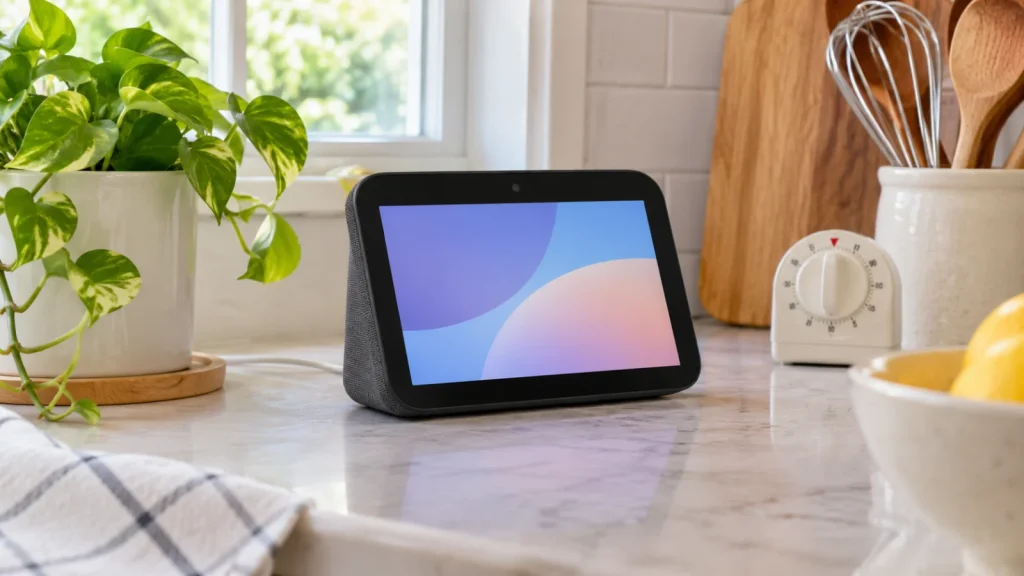
If your home runs on Alexa and you want a smart display under $100, I’d buy the Echo Show 5 (3rd Gen). If your home runs on Google, my pick is the Google Nest Hub (2nd Gen). And if you only want a smart alarm clock with no camera and no video, I think the Echo Spot is the simpler, more private choice for a nightstand.
Under $100 you are choosing a small screen, roughly between three and seven inches. That size is ideal for a nightstand, a desk or a corner of the kitchen counter, where you glance at the time, check the weather, set a timer, see who is at the door or skip a song. It is less suited to watching shows from across a room, and it is not a replacement for a tablet. I want to say that up front, because it prevents the most common disappointment with budget displays: buying one for the wrong job.
In my view, the more important decision is the ecosystem. An Echo display runs Amazon’s Alexa and will never run Google’s assistant, and a Nest Hub runs Google’s assistant and will never run Alexa. Your display becomes the control panel for your lights, plugs, thermostat and cameras, so it needs to speak the same language as the devices you already own or plan to buy. Both platforms are also in the middle of a major change, with Amazon rolling out its new Alexa+ assistant and Google replacing Google Assistant with Gemini for Home on many Nest devices. I explain what that means for each pick below.
Affiliate disclosure: As an Amazon Associate I earn from qualifying purchases. I may earn a commission when you buy through my links, at no extra cost to you.
Quick picks
- Best for Alexa homes: Echo Show 5 (3rd Gen). Compact screen, camera with a shutter, video calls and doorbell feeds.
- Best for Google homes: Google Nest Hub (2nd Gen). The biggest screen here, no camera, a superb photo frame and an excellent night dimming sensor.
- Best smart alarm clock: Echo Spot. A small round screen for the time, alarms and music, with no camera and no video.
Quick Comparison
| Display | Screen | Camera | Assistant | Video | Best for | Price |
|---|---|---|---|---|---|---|
| Echo Show 5 (3rd Gen) | About 5.5 inches | Yes, with a shutter | Alexa | Yes | Bedside or desk in an Alexa home | $54.99(as of Nov 29, 2026 12:04 PM UTC+5 – Details)View on Amazon |
| Google Nest Hub (2nd Gen) | 7 inches | No | Google (moving to Gemini for Home) | Yes, including YouTube | Kitchen or bedside in a Google home | View on Amazon |
| Echo Spot | Small half-circle screen | No | Alexa | No | A smart alarm clock | $44.99(as of Nov 29, 2026 12:04 PM UTC+5 – Details)View on Amazon |
1. Echo Show 5 (3rd Gen): best for Alexa homes
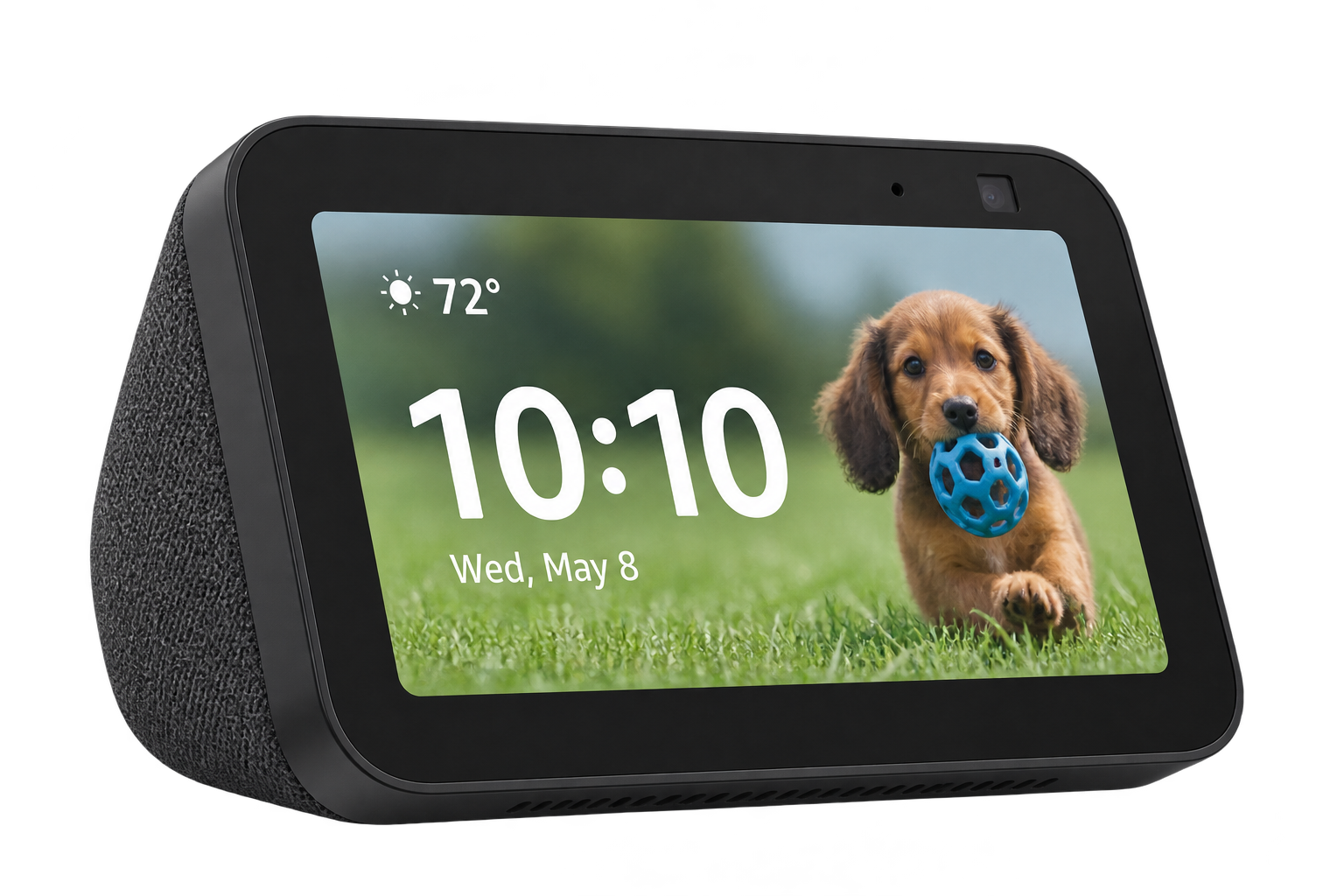
The Echo Show 5 is the go-to budget smart display, and I think the third generation is the best version yet. It is about the size of a large alarm clock, with a slanted screen that is easy to read from a pillow or a desk chair. It is the cheapest way to get a screen into an Alexa home, and it is frequently discounted during Amazon sale events, sometimes to a price close to an Echo Dot.
What it does well
As a bedside clock, I think it is excellent. The screen shows the time large and clear, dims automatically in a dark room, and can switch to a minimal clock face at night. You can tap the top to snooze an alarm, and sunrise alarms can gradually brighten the screen before your wake-up time. Ask for the weather, your calendar or the news and you get both a spoken answer and a visual summary, which is faster to absorb than listening alone.
For me, its biggest advantage over a plain Echo speaker is visual smart home control. Say “show the front door” and a compatible Ring, Blink or other Alexa-supported camera appears on screen. Swipe down for a dashboard of lights, plugs and thermostats, which is handy for guests or family members who do not want to learn voice commands. The built-in camera supports video calls to other Echo Show owners and through the Alexa app, and a physical shutter slides over the lens for privacy. A mic-off button cuts the microphones electrically.
The third generation improved sound noticeably over earlier models, with fuller bass and clearer voices. It is still sized for a bedroom or office rather than a party, but it is perfectly good for podcasts, audiobooks and background music.
Where it falls short
The screen is small for recipes or video. You can watch Prime Video or a news clip, but you will not want to follow a long cooking video from across the kitchen. The home screen rotates suggestions, tips and promotions alongside useful information; you can switch off most categories in settings but not every suggestion. The camera is fine for quick video calls but is not designed to be a security camera.
Alexa+ on the Echo Show 5
Amazon has been rolling out Alexa+, its more conversational, AI-powered assistant, to Echo devices. It understands more natural requests, handles follow-up questions and can take on multi-step tasks. Amazon has said Alexa+ is included for Prime members and available as a paid plan otherwise, and its availability on specific older and smaller devices has varied during the rollout. The classic Alexa experience continues to work for timers, alarms, music and smart home control, so the Echo Show 5 remains a good buy either way. I’d check Amazon’s current Alexa+ device list if the new assistant is important to you.
Who should buy it
I’d choose it for a nightstand or desk in a home that already uses Alexa, especially if you have a Ring or Blink doorbell you want to see on a screen. It is also a good choice for checking in on an older relative through video calls. I’d skip it if you want a bigger screen for the kitchen or prefer no camera in the bedroom.
Buying caution: Amazon sells a Kids edition and bundles with smart bulbs or plugs under similar names. Check that you are buying the third generation, not an older second-generation model sold off cheaply.
2. Google Nest Hub (2nd Gen): best for Google homes
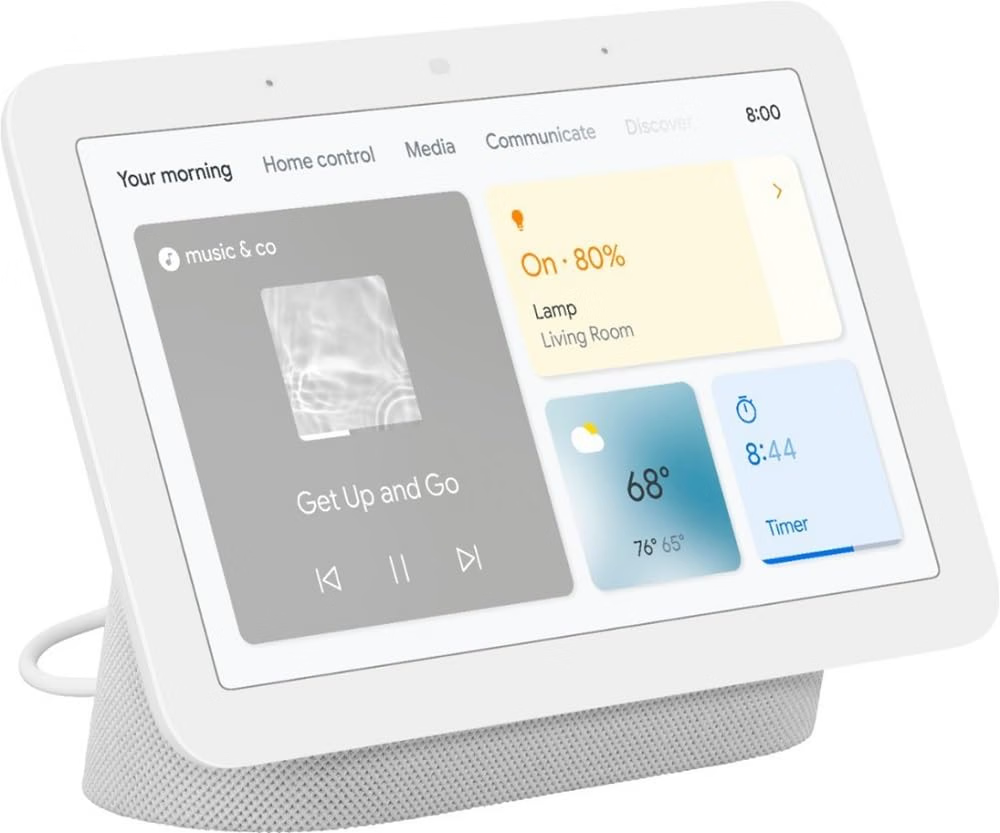
The Nest Hub has the largest screen here at seven inches and no camera at all, which many people prefer in a bedroom. Its design is calm and minimal: a fabric-covered speaker base with a floating screen that looks more like a photo frame than a gadget.
What it does well
I think the Nest Hub is the best digital photo frame of any smart display. Connect it to Google Photos and choose albums, or let it pick photos of particular people and pets, and it cycles through them when idle. An ambient light sensor adjusts brightness and color temperature to match the room, so photos look natural rather than glaring, and the screen dims to near-black at night. That sensor is one reason the Nest Hub is so well regarded as a bedside device.
Its smart home control panel is clear and well organized, grouping devices by room. It plays YouTube natively, which the Echo Show cannot, and it is strong at answering general questions, step-by-step recipes and calendar queries. The second generation added a radar-based Motion Sense feature that lets you pause music or snooze alarms with a wave, and optional sleep tracking without a wearable. It also acts as a Thread border router and Matter controller, which helps if you are building a modern smart home around newer devices.
Where it falls short
No camera means no video calling. It is an older model, released in 2021, so I’d check that it is sold new by a reputable seller and consider how long Google will continue to support it. It will not show feeds from every camera brand; Nest cameras and doorbells work best, while support for others varies. Sound is fine for a kitchen radio but not for filling a room.
Gemini for Home on the Nest Hub
Google has begun replacing Google Assistant with Gemini for Home on its Nest speakers and displays, including older models. Gemini is designed to understand more natural, conversational requests. Google offers some advanced features through a paid Google Home Premium plan, while core voice control remains available without it. The rollout has been gradual, so features on your Nest Hub may change over time. If you rely on specific routines, I’d review them after any major update.
Who should buy it
I’d choose it for a Google home, a kitchen counter, or any bedroom where you want a screen but no camera. It is also my pick if you mainly want a smart photo frame. I’d skip it if you want video calls or use Alexa.
3. Echo Spot: best smart alarm clock
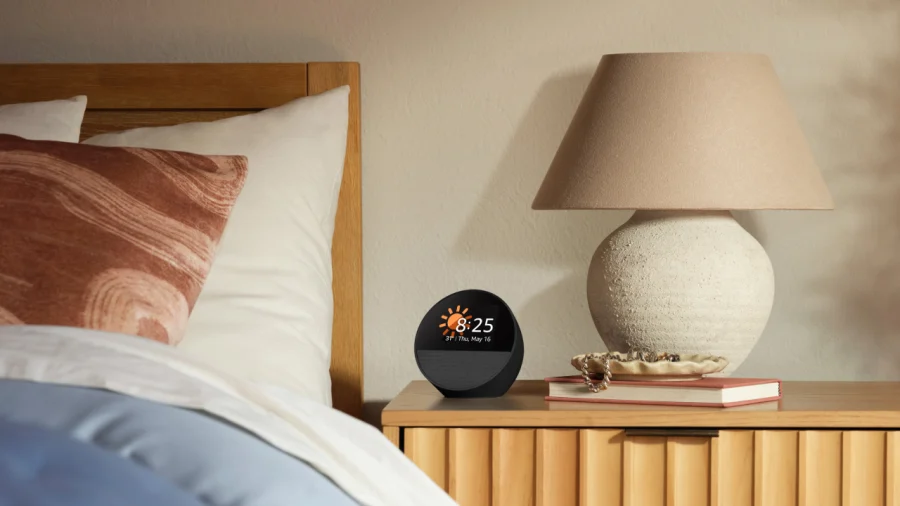
The Echo Spot is a speaker with a small screen for the time, alarms, weather and what is playing. Amazon revived the Spot name in 2024 with a design aimed squarely at the nightstand: a rounded speaker with a half-circle display on the front. It has no camera and does not play video, which keeps it simple and private.
What it does well
I like it because it does one job very well: being a better alarm clock. The clock face is clear and customizable, alarms are easy to set by voice or touch, and the screen shows the song playing, the weather or a timer countdown at a glance. Sound is a step up from an Echo Dot, which helps if you fall asleep to podcasts or wake up to music. Because there is no camera, it is an easy choice for children’s rooms, guest rooms and anyone uncomfortable with a lens by the bed.
All the usual Alexa features work: smart home control by voice, routines that turn on the lights when your alarm goes off, announcements to other Echo devices and music from the major streaming services.
Where it falls short
It cannot show camera feeds, photos or video. The screen is for simple information only, and there is no smart home dashboard to tap. If you want those things, the Echo Show 5 often costs about the same.
Who should buy it
I’d choose it if you want a smart alarm clock and nothing more, or for a child’s or guest room. I’d skip it if you want to see your doorbell or cameras.
Echo Show 5 vs Nest Hub: the head-to-head
If you have not committed to an ecosystem yet, I see these two as the real contest. Here is how I’d compare them in the areas that matter most.
- Screen: the Nest Hub’s seven-inch screen is noticeably larger and better for photos, recipes and the smart home dashboard. The Echo Show 5’s smaller screen suits a cramped nightstand.
- Camera: the Echo Show 5 has one, with a shutter, for video calls. The Nest Hub has none. Decide which matters more to you: calls or privacy.
- Photo frame: the Nest Hub, with Google Photos and its ambient light sensor, is clearly better. The Echo Show can show Amazon Photos but feels less natural.
- Video: the Nest Hub plays YouTube. The Echo Show plays Prime Video and some other services but not YouTube in its native app.
- Smart home: both control thousands of devices. Alexa supports a slightly wider range of budget brands; Google’s panel is cleaner. Both support Matter.
- Doorbells and cameras: Ring and Blink work best on Echo; Nest works best on the Nest Hub.
- Sound: broadly similar for the size, adequate for a bedroom or kitchen.
My rule: if you already own any Echo, Ring or Blink devices, buy the Echo Show 5. If you use Google Photos, Nest cameras or Android heavily, buy the Nest Hub. If you own nothing yet, the Nest Hub is the nicer display, but the Echo ecosystem is cheaper to build around.
Which display for which room?
Bedroom nightstand
Small, dim at night and private. The Echo Spot is the simplest. The Nest Hub has the best night dimming and no camera. The Echo Show 5 fits the smallest spaces and adds sunrise alarms; close the shutter at night if you prefer.
Kitchen counter
Bigger is better because you view it from a few feet away with messy hands. The Nest Hub’s seven-inch screen is the minimum I would suggest for recipes and timers. If you can stretch the budget during a sale, an eight-inch display such as the Echo Show 8 is noticeably easier to read across a kitchen.
Home office desk
I see the Echo Show 5 as a neat desk companion: a clock, calendar, timer and quick video call device that does not take much space. Use it to see who is at the front door without leaving your desk.
Living room or entry hall
A display near the front door works well as a family dashboard for lights, the thermostat and the doorbell. The Nest Hub’s larger screen and photo frame make it a pleasant permanent fixture in a shared space.
A relative’s home
The Echo Show 5 is popular for checking in on older relatives, because family members can start video calls with their permission and it is easy to use by voice. I’d set it up for them, add contacts and turn on large text if needed.
How to choose a smart display under $100
1. Match the display to your ecosystem
My first rule is to pick the display that runs the assistant you already use. Your display becomes the hub of your voice control, routines and camera viewing, so mixing ecosystems leads to duplicate apps and features that do not talk to each other. If you have not chosen yet, my comparison of Alexa, Google Home and Apple Home explains the differences. Apple does not make a smart display in this price range; Apple Home users typically use a HomePod mini and an iPad instead.
2. Decide whether you want a camera
A camera allows video calls and, on some Echo models, checking in on a room remotely. For a bedroom, many people choose a model without one, or keep the shutter closed. There is no wrong answer, but I’d decide before you buy rather than taping over a lens later.
3. Think about viewing distance
As a rough guide, a five-inch screen suits viewing from an arm’s length, a seven-inch screen from a couple of feet, and an eight-inch or larger screen from across a kitchen. If you will mostly listen and only occasionally glance, small is fine.
4. Check what you want to see
I’d make a list of the things you want on screen: a particular doorbell, security cameras, YouTube, Google Photos, a calendar. Then check each one is supported on the display you are considering. Camera compatibility in particular varies by brand.
5. Display or speaker?
A display earns its place if you will look at it: clocks, timers, camera feeds, photos and smart home controls. If you mainly want music and voice control, I think a speaker gives better sound for the money. See my best smart speakers under $100, or, if you have settled on Alexa and want the cheapest option, my Echo Pop vs Echo Dot comparison.
6. Consider long-term software support
Smart displays depend on software updates for new features and security fixes. Newer models generally receive support for longer. The Nest Hub (2nd Gen) is the oldest pick here, but Google continues to bring new assistant features to it; the Echo Show 5 (3rd Gen) and Echo Spot are newer.
Privacy settings worth changing on day one
Smart displays have microphones and, in some cases, cameras, in the most private rooms of your home. These are the settings I’d change first; a few minutes gives you much more control.
- Review voice recording settings. Both Amazon and Google let you see and delete voice history and choose how long it is kept. Set automatic deletion if you prefer.
- Use the physical controls. The mic-off button and camera shutter are hardware switches, not software promises.
- Control who can drop in. On Echo devices, Drop In lets approved contacts connect without you answering. Turn it off, or limit it to your own household.
- Limit personal results. Displays can show calendar entries and messages to anyone in the room. Restrict personal results if guests or children use the device.
- Reduce home screen content. On Echo Show, turn off content categories you do not want, such as suggestions or trending topics.
Getting the most from a budget display
- Set up a morning routine. One phrase, such as “good morning”, can turn on lights, read the weather and your calendar, and start the news.
- Use it as a camera monitor. Link your doorbell so it shows the visitor automatically when someone rings.
- Create a family photo album. Shared albums let relatives add photos that appear on the display, which is especially lovely in a grandparent’s home.
- Use multiple timers. Name them, such as “pasta timer” and “oven timer”, and see them all counting down on screen.
- Group it with speakers. Add the display to a speaker group for whole-home music or announcements.
What a smart display can do that a speaker cannot
Before you spend more on a display than on a speaker, I think it helps to be clear about what the screen adds in daily life. These are the uses people most often say they could not do without.
Seeing who is at the door
With a compatible video doorbell, the display can show the visitor automatically when the bell is pressed, and you can talk to them through the display. For anyone working from home, cooking or looking after children, that saves a lot of trips to the door, and it lets you ignore sales calls without opening it.
Timers you can see
A speaker tells you a timer is running. A display shows every timer counting down at once, labeled by name. In a kitchen with three things cooking, I’d call that the difference between helpful and essential.
A smart home control panel for everyone
Not everyone in a household wants to use voice commands or install an app. A display gives guests, children and older relatives a simple touch screen to turn on lights, adjust the thermostat or lock the door. It also confirms what happened after a voice command, so you know the porch light really turned off.
Photos that actually get seen
Most of my photos sit unseen in phone galleries. A display that cycles through favorite albums turns them into something the whole family enjoys every day. Shared albums mean grandparents can see new photos of grandchildren as soon as they are added.
Visual answers
Weather forecasts, calendar days, commute times, recipe steps and shopping lists are all easier to take in at a glance than to listen to. Asking for the week’s weather and seeing seven days at once is faster than hearing them read aloud.
Video calls
On displays with a camera, video calls are hands-free, which makes them easy for older relatives and children. The Echo Show 5 supports calls to other Echo devices and to the Alexa app on phones.
If none of these appeal, I’d buy a smart speaker instead: it costs less, sounds better for the money and does everything else just as well.
Setting up your display: a first-hour checklist
- Place it well. Put the display at eye level when you are sitting or standing in its main spot, away from direct sunlight that washes out the screen, and with space around the speaker.
- Install updates. Displays often download an update during setup. Let it finish before changing settings.
- Link your accounts. Connect your music service, calendar and photo library first, because these make the home screen useful.
- Add your smart home devices. Link skills or services for your lights, plugs and cameras, and assign each device to a room so the dashboard is organized.
- Set your night mode. Choose a dim clock face and turn on do-not-disturb during sleeping hours if the display is in a bedroom.
- Adjust privacy settings. Review voice history, Drop In, personal results and home screen content, as described above.
- Create one routine. Start with a single useful routine, such as “good night” turning off lights and locking the door. You can add more once you see what you use.
Common mistakes to avoid
- Buying the wrong ecosystem. A great display that cannot control your devices is a frustrating clock.
- Expecting tablet-like video. Five- and seven-inch screens are for glancing and short clips, not movies.
- Assuming every camera works. Check doorbell and camera compatibility before you buy.
- Ignoring the bedroom light. Turn on night dimming or a dark clock face, or the display can disturb sleep.
- Paying full price. These displays are discounted so often that full price is rarely necessary.
When to buy
Amazon and Google discount their own smart displays heavily and often, especially around Prime Day, Black Friday and the holiday season. Echo Show models in particular regularly drop to around half their list price. Unless you need a display today, I’d wait for a sale; the same money can buy a larger screen than you planned.
Alexa+ and Gemini for Home: what the new assistants mean for buyers
For most of the last decade, the assistants on smart displays changed slowly. That is no longer true. Both Amazon and Google are moving their smart home devices to new assistants built on large language models, and that affects which display you might buy.
What is actually different
The older assistants were good at fixed commands: set a timer, play a song, turn on the kitchen light. The new ones aim to understand everyday language, remember context within a conversation, and handle requests that used to need a carefully built routine, such as “turn off everything downstairs except the porch light”. They can also answer more open-ended questions and help with planning tasks. In practice, the experience is still evolving, and early users report both impressive moments and occasional misunderstandings.
Will it cost extra?
Amazon has said Alexa+ is included with Prime membership and available as a monthly plan for non-Prime customers. Google offers core Gemini for Home features without charge and some advanced capabilities through its Google Home Premium plan. Neither is required for the basics. Your display will still tell the time, run timers and alarms, play music and control devices without a new subscription.
Should it change what you buy?
For a budget display, I don’t think it should change much. Your existing ecosystem should still decide, because the devices you own matter more than the assistant’s personality. If you are a Prime member and want to try the newest Alexa features, check that your chosen Echo display is on Amazon’s current Alexa+ supported list. If you are in the Google ecosystem, the Nest Hub (2nd Gen) is among the devices Google has named for Gemini for Home, so it should continue to gain features. Rollouts happen gradually, so expect changes over the coming months.
Smart displays for specific people
Older relatives
A smart display can be a lifeline for an older parent who lives alone: hands-free video calls, medication reminders, large-text clocks and easy music by voice. The Echo Show 5 is the popular choice here because family members can be added as contacts for one-tap calls. I’d set it up before you give it, add reminders, and agree on how calls work so it never feels intrusive. Bigger screens are easier for people with poor eyesight, so consider stretching to an eight-inch model if vision is a concern.
Children
For a child’s room, I think the camera-free Echo Spot is the simplest option, with a clear clock, alarms and bedtime stories. Amazon also sells Kids editions of the Echo Show with parental controls and a subscription for child-friendly content. Google lets parents set up supervised accounts and filters on Nest devices. In every case, turn off purchasing by voice and review what content is allowed.
Renters and small apartments
Displays need no installation and travel with you, which makes them a natural centerpiece for a renter’s smart home. Pair one with smart plugs and bulbs for a complete no-drill setup. My smart home guide for renters shows how the pieces fit together.
Light sleepers
If any light keeps you awake, I’d choose the Nest Hub for its ambient light sensor, or the Echo Spot with its small display. Set a dark clock face, turn on do-not-disturb, and test the display in a fully dark room before you commit to keeping it by the bed.
Is it worth stretching past $100?
For a bedside or desk display, I’d say no: the picks here are the right size, and bigger screens can feel overwhelming at close range. For a kitchen or living room, an eight-inch or larger display is genuinely more useful, because you view it from further away and are more likely to follow recipes or watch short videos. Larger Echo Show models also add better speakers and, on some, auto-framing cameras for video calls. Because they are discounted so often, a larger display can sometimes be found close to $100 during sales. If the kitchen is your main room, I’d wait for one of those deals rather than settling for a small screen.
A quick checklist before you buy
Smart displays are easy to buy on impulse during a sale and easy to regret if they do not fit your home. I’d answer these questions first; they take a few minutes and point you to the right model.
- Which assistant already runs my home? Alexa points to the Echo Show 5 or Echo Spot; Google points to the Nest Hub.
- Which room is it for? A nightstand suits a small screen; a kitchen needs seven inches or more.
- Do I want a camera? Video calls need one; many people prefer none in a bedroom.
- What do I want to see on the screen? List your doorbell, cameras, photo service and video apps, and check each is supported.
- Who will use it? Children, older relatives and guests may need simpler settings, voice profiles or parental controls.
- How do I feel about promotions on the home screen? Echo displays show more suggestions; you can reduce them in settings.
- Am I buying a current model? Check the generation so you get the longest software support.
- Is a sale coming? These displays are discounted often, so a short wait can save a lot.
Once you have answered these, the choice is usually obvious, and you can buy with confidence rather than guessing between near-identical listings.
What to do with an old smart display
If you are upgrading, I’d keep in mind that an older display can still be useful. Move it to a guest room, a child’s bedroom or a relative’s home as a clock and video calling device, or use it as a dedicated photo frame. Before passing it on, remove it from your account and perform a factory reset so your calendar, contacts and photos do not travel with it.
If the display no longer receives updates or will not be used, recycle it properly rather than throwing it away. Many electronics retailers and local authorities accept small electronics, and both Amazon and Google run recycling or trade-in programs in some regions. Check what is available where you live before buying a replacement, because a trade-in credit can lower the cost of the new display.
Final verdict
Here is my bottom line. Buy the Echo Show 5 (3rd Gen) for an Alexa home, especially if you want video calls or to see a Ring or Blink doorbell. Buy the Google Nest Hub (2nd Gen) for a Google home, a bigger screen with no camera, or the best photo frame in this price range. Buy the Echo Spot if all you want is a smart alarm clock. Whichever you choose, I’d match it to your ecosystem first and change the privacy settings on day one.
Frequently asked questions
Can a smart display show my video doorbell?
Often, if the doorbell supports that assistant. Ring and Blink work with Echo displays; Nest doorbells work best with the Nest Hub. Many other brands support one or both. Check the doorbell’s listing. My doorbell guide notes compatibility.
Do smart displays need a subscription?
No. Music and video services have their own fees, and both Amazon and Google now offer optional paid tiers for their newest AI assistant features, but the display works for clocks, timers, smart home control, calls and basic questions without a plan.
Can I turn off the ads on an Echo Show?
You can switch off most categories of home screen content in the settings, under the home content options. Some suggestions may still appear. Choosing a photo-frame home screen also reduces how often promotions show up.
Can I use a smart display as a security camera?
Some Echo Show models let you view their camera remotely through the Alexa app, which can be handy for a quick check. They are not designed as security cameras, though: there is no motion recording or alert history. I think a dedicated indoor camera is a better tool; see my best indoor security cameras under $50.
Will a smart display work with my iPhone?
Yes. The Alexa and Google Home apps both run on iPhone, and you can stream music from most services. What you cannot do is use Siri or Apple Home on these displays.
Do smart displays work without Wi-Fi?
Very little works without internet: most will still show the time and ring existing alarms, but voice requests, music and cameras need a connection. My guide to which smart home devices work without internet has more detail.
Can two people use the same smart display?
Yes. Both Amazon and Google support voice recognition for several household members, so the display can give each person their own calendar, music and reminders. Set up a voice profile for each adult in the app; it takes a couple of minutes and makes shared displays far more useful.
How long will a budget smart display last?
The hardware typically lasts many years because it has no moving parts and stays plugged in. The practical limit is software support. Buying a current model, rather than an older generation sold off cheaply, gives you the longest useful life and access to new assistant features as they arrive.

Abdullah Khan
Smart Home WriterKhan is the smart home writer behind Smart Space Advisor. He is an IT engineer and tech blogger with a knack for making complex technology easy to understand, and he brings hands-on experience solving real-world technical problems to every guide. He covers smart security, video doorbells, smart plugs, lighting and platforms including Matter, Alexa, Google Home and Apple Home, and he labels his recommendations as research-based unless he has used a product himself.
Amazon prices on this page are as of November 29, 2026 12:04 PM UTC+5. Product prices and availability are accurate as of the date/time indicated and are subject to change. Any price and availability information displayed on Amazon at the time of purchase will apply to the purchase of the product.