
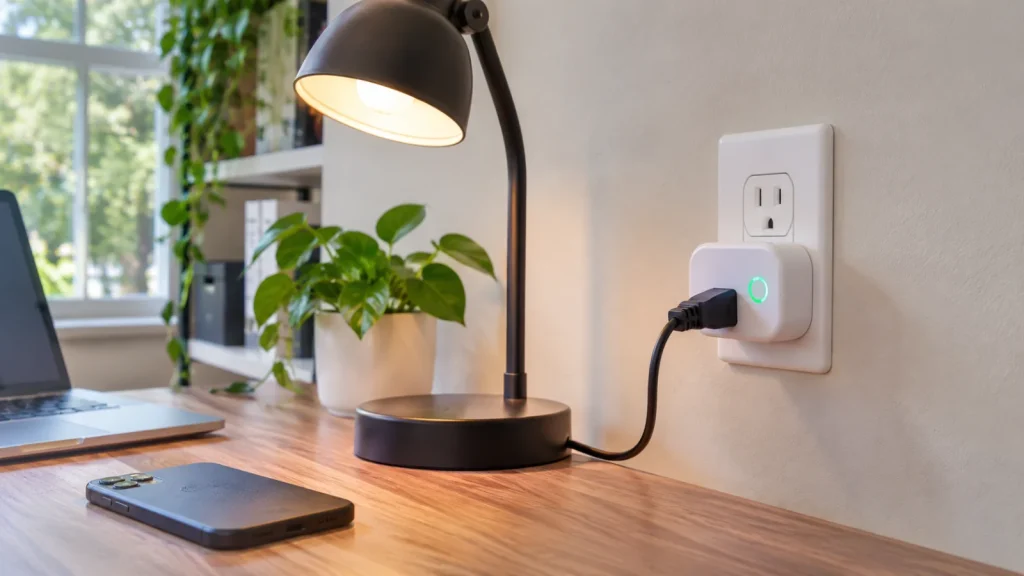
If you want one smart plug with energy monitoring that suits most homes, I’d buy the Kasa KP125M. It tracks power use in detail, shows live wattage and daily and monthly totals, and supports Matter, so it works with Alexa, Google Home and Apple Home. If you only need monitoring at the lowest price, I’d look at the Kasa EP25 (usually sold in multi-packs) or the Tapo P115, which do the same core job for less; I like that the Tapo adds cost estimates in dollars. If you run an Apple home and value privacy and local control, I’d choose Eve Energy.
An energy-monitoring plug measures the electricity flowing to whatever is plugged into it. That turns a vague worry about the power bill into a hard number for one appliance. Is the old garage fridge costing more than a new one would? Does the game console really use power when it is “off”? Is the dehumidifier running far more than you thought? A plug that measures will tell you in a few days, and the answer is often surprising. In my view, it is the cheapest and simplest way to find the devices that waste money in your home.
In this guide I cover the four plugs I’d pick for the job, explain how to read the numbers they produce, walk you through a practical week-by-week plan for finding waste, and show you how to turn kilowatt-hours into dollars. I also cover what these plugs cannot do, which appliances should never go on one, and how accurate the readings really are.
Affiliate disclosure: As an Amazon Associate I earn from qualifying purchases. I may earn a commission when you buy through my links, at no extra cost to you.
Quick picks
- Best overall: Kasa KP125M. Detailed monitoring plus Matter for Alexa, Google Home and Apple Home.
- Best low-cost pick: Kasa EP25. The same Kasa monitoring in a cheaper plug, ideal in multi-packs.
- Best value with cost estimates: Tapo P115. Enter your electricity rate and see spending in dollars.
- Best for Apple Home and privacy: Eve Energy. Thread and Matter, local data and no maker account.
Compare the four plugs
| Plug | Connection | Works with | Strength | Main compromise | Price |
|---|---|---|---|---|---|
| Kasa KP125M | Wi-Fi, Matter | Alexa, Google Home, Apple Home through Matter | Detailed monitoring with broad compatibility | Energy data lives in the Kasa app, not in other ecosystems | $18.99(as of Nov 29, 2026 6:58 PM UTC+5 – Details)View on Amazon |
| Kasa EP25 | Wi-Fi | Alexa, Google Home; check the listing for Apple Home | Low price, often sold in multi-packs | No Matter | $28.49(as of Nov 29, 2026 6:58 PM UTC+5 – Details)View on Amazon |
| Tapo P115 | Wi-Fi | Alexa, Google Home | Value, with cost estimates in the app | No Apple Home | $27.99(as of Nov 29, 2026 6:58 PM UTC+5 – Details)View on Amazon |
| Eve Energy | Thread, Matter | Apple Home; other platforms through Matter | Privacy and local control | Highest price; needs a Thread border router for full use | $28.95(as of Nov 29, 2026 6:58 PM UTC+5 – Details)View on Amazon |
1. Kasa KP125M: best overall
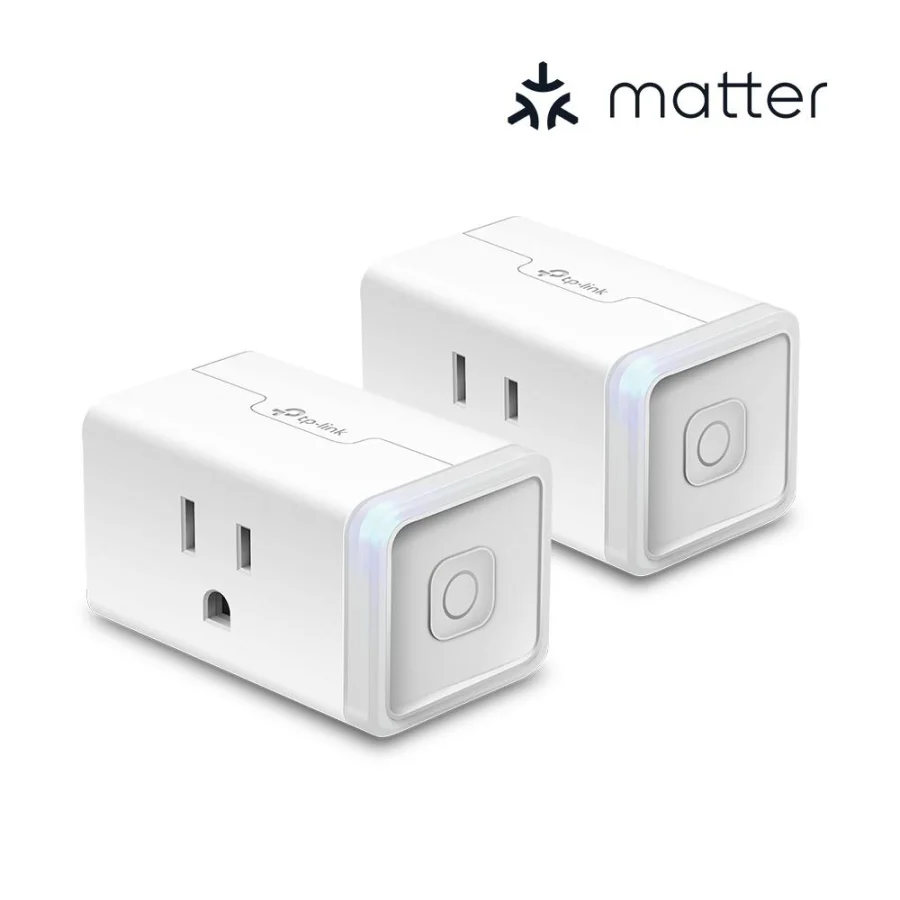
I rank the KP125M first because it combines two things that rarely come together at this price: genuinely useful energy reports and the freedom to use any major smart home platform.
What it does well
The Kasa app shows live wattage, so you can watch a device’s power draw change as you switch it between modes. It also keeps daily, weekly and monthly totals in kilowatt-hours, which is what you need to compare appliances fairly. The plug is compact enough to leave the second outlet of a standard wall socket free, a small detail I consider important when monitoring something behind a TV or desk.
Matter certification means you can add it to Apple Home, Google Home, Alexa or SmartThings, and control it from any of them. Schedules, timers and away mode run in the Kasa app, and the plug works with Kasa’s broader range of switches and cameras. Once you have found a power-hungry device, you can immediately put it on a schedule to cut waste.
Where it falls short
Matter shares on and off control with other platforms, but the energy figures are viewed in the Kasa app. If you hoped to see consumption inside Apple Home or Google Home, you will still open Kasa for the numbers. It costs a little more than the EP25.
Who should buy it
I’d choose it if you want one plug that suits any ecosystem, or if your household mixes iPhones and Android phones. It is my safest single recommendation for most people.
2. Kasa EP25: best low-cost pick
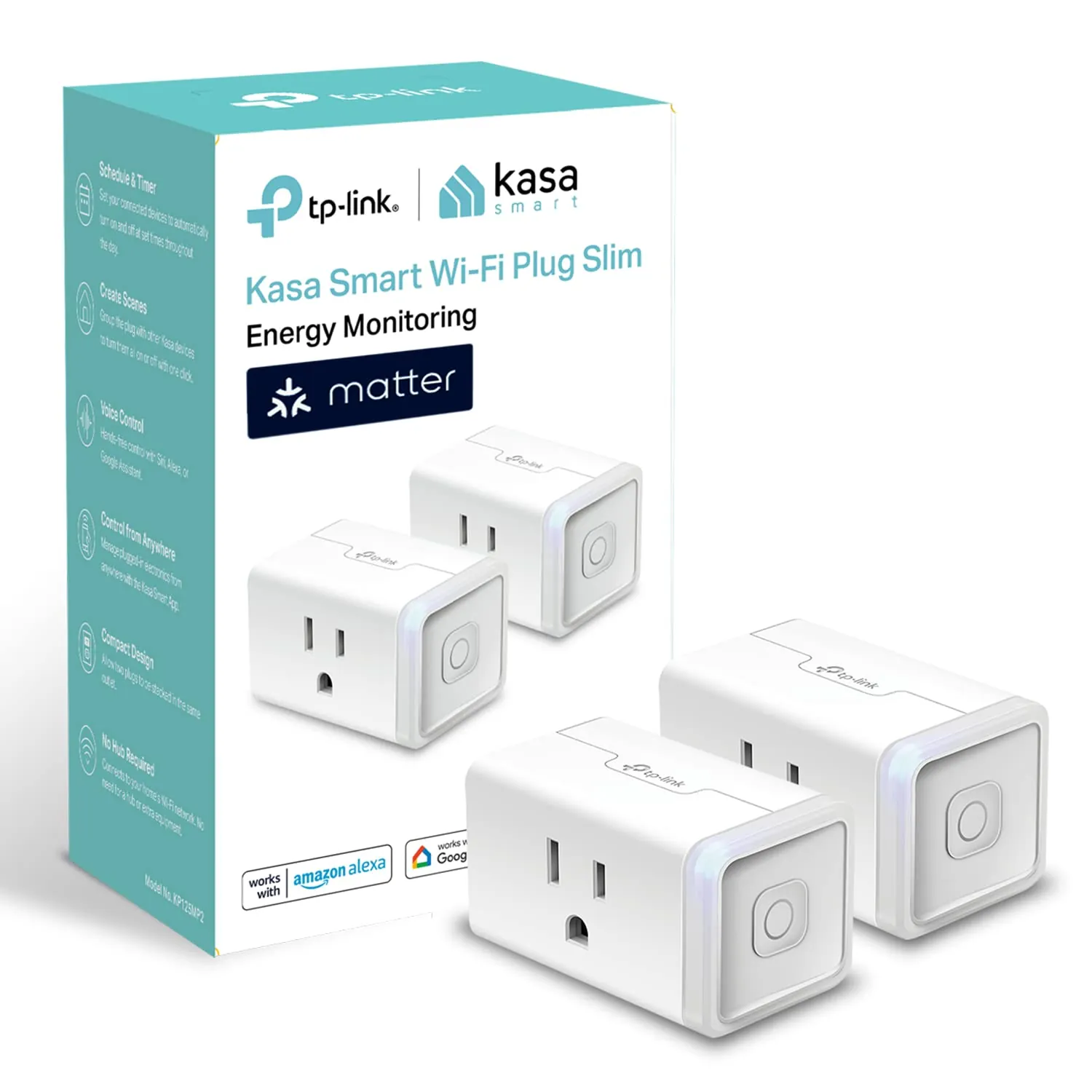
The EP25 offers the same Kasa monitoring in a cheaper plug that is usually sold in packs of two or four. That makes it my practical choice when you want to measure several appliances at once, which is the fastest way to build a picture of where your electricity goes.
What it does well
You get live wattage, daily and monthly totals, schedules, timers and away mode in the same Kasa app as the KP125M. With four plugs, you can monitor the TV and console in the living room, the home office setup, the kitchen’s small appliances and the garage fridge all in the same week, then move them to the next set of devices. Some versions also support Apple HomeKit, so check the listing if you need it.
Where it falls short
No Matter support, so you are tied to Alexa, Google Assistant and, on the right version, HomeKit, rather than the full Matter ecosystem. It is slightly bulkier than some newer plugs.
Who should buy it
I’d choose it to cover a whole room of devices at a low cost per plug. I compare it with a cheaper rival in Kasa vs Gosund smart plugs.
3. Tapo P115: best value with cost estimates
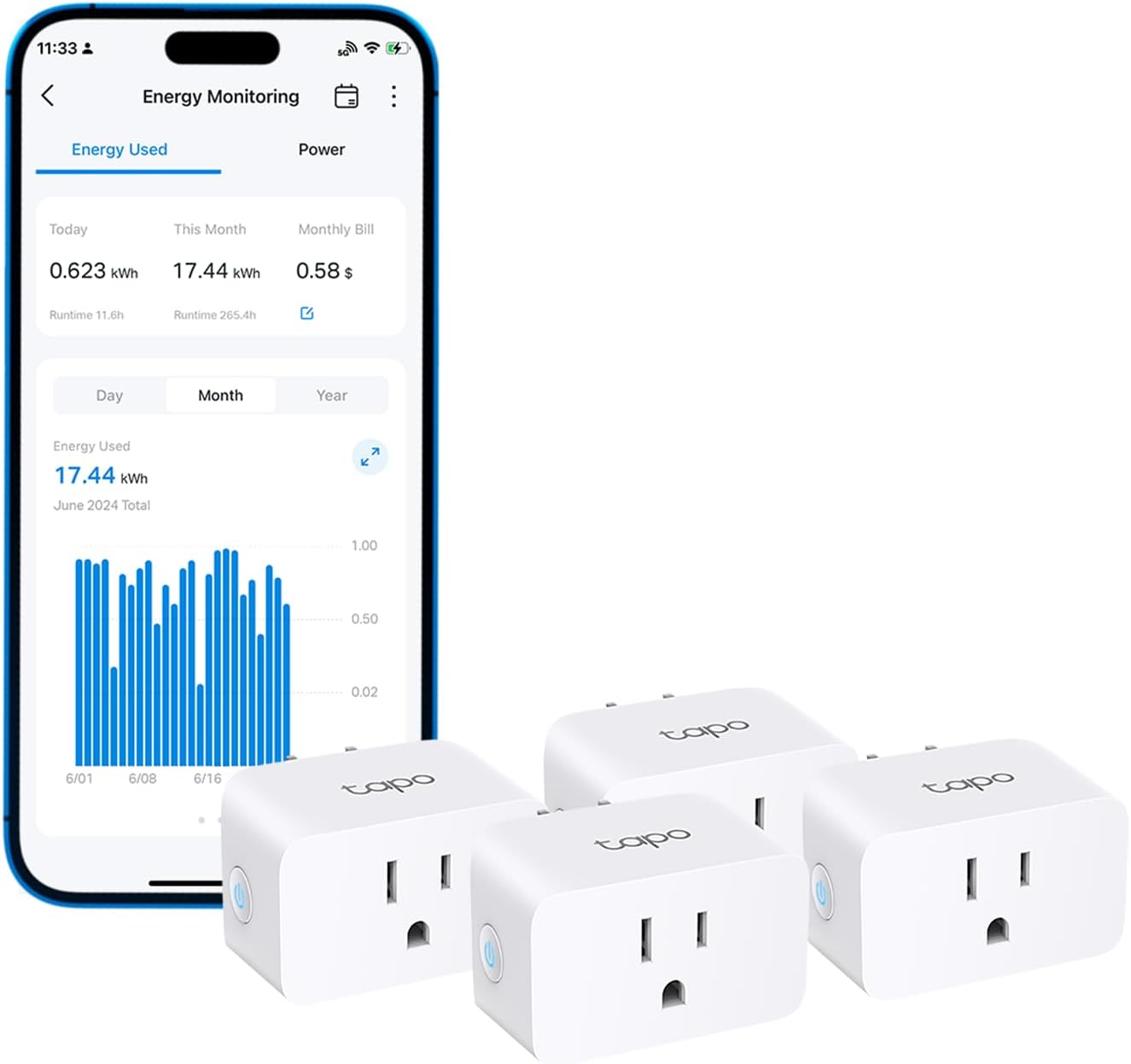
The P115 is a small plug from TP-Link’s Tapo brand that lets you enter your electricity rate, so the app shows estimated cost as well as kilowatt-hours. For most people, I find that seeing dollars is what prompts a change. “This console costs about this much a year while switched off” is far more motivating than a kilowatt-hour figure.
What it does well
What I like most is that the cost estimate feature removes the arithmetic. Enter the rate per kilowatt-hour from your bill once, and the app converts usage into money for the day, month and year. The Tapo app is clean and easy to read, the plug is compact, and it works with Alexa and Google Assistant. If you already use Tapo cameras or bulbs, it sits in the same app.
Where it falls short
There is no Apple Home support. Cost estimates are only as accurate as the rate you enter, and they do not account for time-of-use pricing unless the app supports multiple rates.
Who should buy it
I’d choose it if you already use Tapo devices or want cost figures without doing the math.
4. Eve Energy: best for Apple Home and privacy
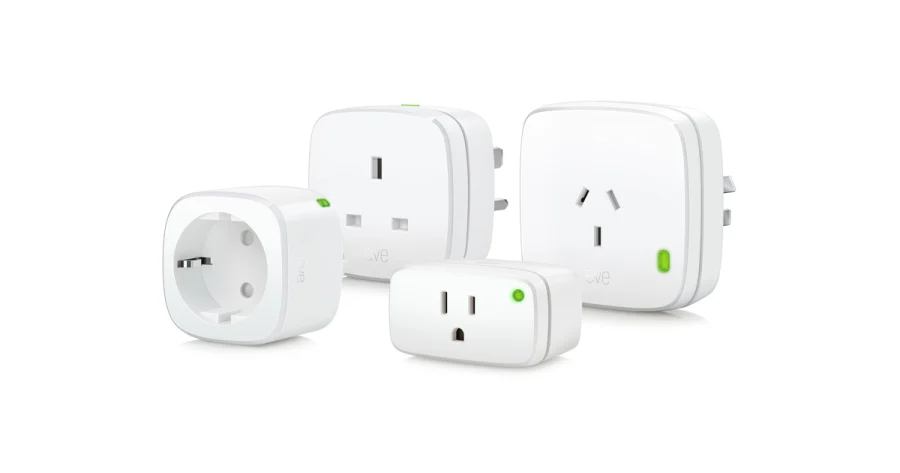
Eve Energy is the usual recommendation for Apple households. It runs over Thread with Matter, keeps its data local, and needs no account with the maker. It costs more than the others, but for privacy-minded buyers I think that premium buys something real.
What it does well
Because Eve does not route your data through its own cloud, your energy history stays in your home and in Apple’s ecosystem. Thread is a low-power mesh network that makes devices respond quickly and reliably, and each plugged-in Thread device strengthens the mesh for others. The Eve app presents energy data clearly, with consumption, projected cost and history. Through Matter, Eve Energy can also join Google Home, Alexa or SmartThings for on and off control.
Where it falls short
It is the most expensive pick. Thread devices need a border router, such as a recent HomePod, HomePod mini or Apple TV 4K, or a compatible Google or Amazon device. Detailed energy figures are richest in the Eve app on iPhone; check which platforms show Eve’s energy data before buying for a non-Apple home.
Who should buy it
I’d choose it if you use Apple Home and want local control and no maker account. I’d skip it if you are on Android or want the lowest cost per plug.
Which plug fits your home?
Four good plugs can still leave you unsure which to buy. These real-world situations are how I’d make the choice clearer.
You want to audit the whole house quickly
I’d buy a four-pack of Kasa EP25 plugs. Put them on four suspects for a week, note the results, then move them to the next four. In a month you will have measured most plug-in appliances in a typical home for a modest outlay, and the plugs keep earning their place afterward as schedulers.
You live in a mixed iPhone and Android household
I’d buy the Kasa KP125M. Matter lets everyone control the plug from their own preferred app and assistant, while the Kasa app holds the energy history for whoever is tracking the bills.
You want to show the family what things cost
I’d buy the Tapo P115. Saying “the console costs this much a year in standby” in dollars is more persuasive than kilowatt-hours, especially with teenagers and gaming setups.
You run an Apple home and care about privacy
I’d buy Eve Energy. No maker account, local data and a responsive Thread connection, plus native Apple Home integration for automations such as switching off a printer when everyone leaves.
The usual suspects: where to start measuring
Every home is different, but certain devices are worth measuring first because they often run longer or draw more standby power than people expect. This is the list I’d use as a starting point for your first week.
- Second fridges and chest freezers: older units, especially in hot garages, can run for much of the day. Measuring for a week shows the true yearly cost and whether a newer model would pay for itself.
- Game consoles: “instant-on” or rest modes keep consoles partly awake for fast start-up and background downloads. Switching to an energy-saving mode often cuts standby use dramatically.
- TV and entertainment centers: soundbars, set-top boxes, streaming sticks and subwoofers each draw a little standby power, and together they add up. Measure the whole setup on one plug through a power strip.
- Home office equipment: printers, monitors, desktop PCs, docks and speakers left on overnight.
- Dehumidifiers and air purifiers: they can run for many hours a day, especially in damp seasons.
- Aquariums and terrariums: heaters, filters and lights run constantly. Measuring helps you understand the cost, though they should not be switched off on a schedule without care for the animals.
- Electric blankets, heated mattress pads and small space heaters: measure briefly within the plug’s load rating, but do not schedule heaters to switch on unattended.
- Old chargers and adapters: individually small, but worth unplugging when not in use.
You may find that the things you worried about cost very little and something you never considered is the real culprit. To me, that is exactly the value of measuring rather than guessing.
How to read the numbers
Energy plugs show two kinds of figures, and I think understanding the difference is the key to using them well.
- Watts (W) are power: how fast a device is using electricity right now. A lamp might use 9 watts; a kettle might use 1,500. Live wattage is useful for spotting standby draw and comparing modes.
- Kilowatt-hours (kWh) are energy: how much electricity was used over time. One kilowatt-hour is 1,000 watts for one hour, or 10 watts for 100 hours. Your bill charges by the kilowatt-hour, so this is the number that turns into money.
A device that uses a lot of power briefly, like a kettle, can use less energy overall than a device that sips a little power around the clock, like an old set-top box. That is why I always measure over days, not minutes.
Turning kilowatt-hours into dollars
The formula is simple: kilowatt-hours used multiplied by your rate per kilowatt-hour equals cost. Find your rate on your electricity bill; it is usually listed per kWh, sometimes with separate supply and delivery charges that you can add together for a realistic figure.
Here are some quick reference points I use to put numbers in perspective. A device averaging 1 watt around the clock uses about 8.8 kWh a year. A device averaging 10 watts uses about 88 kWh a year. A device averaging 100 watts uses about 876 kWh a year. Multiply by your rate, and you have the yearly cost. For example, at a rate of 20 cents per kWh, a 10-watt standby load costs roughly $17 a year, and a 100-watt constant load costs roughly $175.
How to use an energy-monitoring plug to cut your bill
- Measure for a full week. Appliances that cycle, such as fridges, freezers and dehumidifiers, need several days to show a true average. Weekly habits, like weekend gaming, also show up.
- Look at standby use. Check the wattage when the device is off or idle. TVs, consoles, printers, soundbars, set-top boxes and chargers are common offenders.
- Turn the figure into money. Use the formula above, or the Tapo or Eve app’s cost estimates.
- Act on the biggest number first. Put idle electronics on a schedule that cuts power overnight, change console settings from “instant-on” to energy-saving mode, and consider replacing an old appliance that runs constantly.
- Move the plug. Once you have the answer for one appliance, measure the next. A few weeks with two or four plugs covers most of a home.
I’d keep in mind that the plug itself draws a little power to stay connected, typically well under a watt to around a watt. It pays its way on devices with real standby waste, not on a lamp you already switch off.
What not to plug in
- Anything that draws more than the plug’s rated load. Check the label on space heaters, air conditioners, kettles and hair dryers. Many plugs are rated around 15 amps, but always confirm, and many makers advise against heaters entirely.
- Medical or safety equipment. Oxygen concentrators, CPAP machines, sump pumps and alarms should never be switched off by an app or schedule.
- Appliances that should not restart unattended. Irons, hot plates and some heaters are not safe to switch on remotely.
- Fridges and freezers on schedules. Measuring them is fine; switching them off is not.
A four-week plan to find and cut waste
If you buy two to four plugs, this is the simple plan I’d follow; it covers most homes in a month and gives you a clear list of changes to make. It takes a few minutes a week.
Week one: the entertainment area
Measure the TV and everything around it: console, soundbar, streaming box and subwoofer, either individually or through a power strip on one plug. Note the total for the week and, separately, the standby wattage late at night when nothing is in use. Entertainment centers are one of the most common sources of standby waste, so this week often produces the biggest surprise.
Week two: the home office
Measure the desktop computer, monitors, printer, speakers and docking station. Compare weekday and weekend figures. Many offices draw power all night and all weekend for equipment nobody is using.
Week three: always-on appliances
Measure the second fridge, chest freezer, dehumidifier, aquarium or anything else that runs constantly or cycles all day. These are measured for information, not scheduling; the result tells you whether an appliance is worth replacing or relocating to a cooler spot.
Week four: act and verify
Make your changes: switch consoles to energy-saving modes, schedule overnight cut-offs for entertainment and office equipment, and plan any appliance replacements. Then put the plugs back on the changed devices for a week to confirm the savings. I find seeing the before-and-after numbers satisfying, and it helps you decide where to go next.
Kasa, Tapo and Eve apps compared for energy tracking
Because you will spend most of your time with these plugs looking at the app, I think it is worth knowing how they differ.
- Kasa app: shows current power, today’s use, and seven-day and thirty-day totals per plug. It is straightforward and reliable, and works well when you want quick comparisons between several plugs.
- Tapo app: adds cost estimates based on your electricity rate and presents usage in a clean, modern layout. Good for people who think in dollars rather than kilowatt-hours.
- Eve app: offers detailed history, projected consumption and cost, and keeps data on your devices rather than a maker cloud. It is the most detailed of the three for iPhone users.
None of these apps is perfect for long-term analysis across many devices. If you get serious about tracking, smart home platforms such as Home Assistant can record data from Kasa, Tapo and Matter plugs over months and years and present it on a single energy dashboard.
Standby power, sometimes called vampire or phantom load, is electricity used by devices that are switched off or not being used but are still plugged in. A TV waiting for its remote, a console ready to download updates, a microwave clock, a printer in sleep mode and a phone charger with nothing attached all draw a little. Individually, modern devices often use well under a watt in standby. But older devices, and some that keep network connections alive, can use much more, and a typical home has dozens of them.
In my view, energy-monitoring plugs are the best tool for finding the standby offenders, because they show the exact wattage when a device is supposedly off. The fix is usually simple: change a setting from “quick start” to “energy saving”, put a cluster of devices on a power strip controlled by a smart plug with an overnight schedule, or unplug rarely used devices entirely. I’d be selective, though. Cutting power to a router, a security system, a fridge or a device that needs to stay ready, such as a set-top box that records shows, causes more problems than it saves.
Automations that actually save energy
Once you know which devices waste power, the plug can do something about it automatically. These are the routines I’d set up, because they save money without anyone needing to remember anything.
- Overnight entertainment cut-off: switch off the TV, soundbar and console cluster from midnight to early morning, when nobody is using them.
- Office power-down: cut power to printers, monitors and speakers at the end of the workday and restore it in the morning.
- Away mode: when everyone leaves, switch off nonessential electronics using phone location or a routine in Alexa, Google Home or Apple Home.
- Run-time limits: turn off a dehumidifier or air purifier after a set number of hours, or only run it during cheaper off-peak periods if your tariff has them.
- Auto-off timers: switch off a coffee maker, curling iron station or desk heater automatically after a short period, within the plug’s load rating.
- Usage alerts: some apps can notify you when a device’s power use rises or falls, for example to tell you the washing machine has finished.
Energy plugs vs whole-home energy monitors
Plug-in monitors and whole-home monitors answer different questions. Knowing which you need prevents buying the wrong tool, so here is how I see them.
- Energy-monitoring plugs measure one appliance precisely, cost little, install in seconds and move from device to device. They cannot measure hard-wired appliances such as ovens, water heaters, central air conditioning or electric car chargers.
- Whole-home monitors clip onto the cables in your electrical panel or read your utility meter. They show total household use in real time and, on some systems, estimate which large appliances are running. They cost more and panel installation is often a job for an electrician.
For most people, I think a few energy plugs are the right starting point, because plug-in electronics and small appliances are where standby waste hides. If your biggest costs come from heating, cooling or hot water, a whole-home monitor, or a smart thermostat, will do more. My article on whether smart thermostats really save money covers that side of the bill.
Getting accurate readings
Energy plugs are simple to use, but these habits of mine make the numbers more trustworthy and easier to compare.
- Set the time zone and location correctly in the app, so daily totals start and end at midnight in your area.
- Reset or note the counter when you move a plug to a new device. Some apps keep a running total, so write down the starting figure or check the history for the exact days you measured.
- Measure normal use. Do not change your habits during the measuring week, or the result will not reflect real life.
- Include a weekend. Many devices are used very differently on weekends.
- Record standby separately. Note the live wattage at a quiet time, such as 3am, using the app’s history if it shows hourly data.
- Repeat in a different season for appliances affected by temperature or humidity.
Matter, Thread and where your energy data appears
Matter has made it much easier to use one plug across several smart home platforms, but energy reporting is still catching up. The Matter standard includes ways for devices to share power and energy measurements, and platform support for showing those figures has been growing. In practice, the most complete energy history is still found in each maker’s own app. If seeing energy data inside Apple Home, Google Home or Alexa matters to you, I’d check current platform support before you buy, because it changes with software updates.
Thread, used by Eve Energy, is a separate question. It is the low-power network the plug uses to communicate, not the data format. Thread devices need a border router, which many recent smart speakers and streaming boxes include. For a full explanation, see my guides to what Matter is and Matter vs Zigbee vs Z-Wave.
Patterns to look for in your data
After a week of measuring, the shape of the data often tells you more than the total. These are the patterns I look for.
- A flat line that never drops to zero: constant standby draw. If the number is more than a few watts when the device is off, look for an energy-saving setting or schedule a cut-off.
- Long cycles that get longer: a fridge or freezer whose compressor runs for longer and longer periods may have worn door seals, dusty coils or be sitting somewhere too warm.
- Spikes at odd hours: consoles and computers that wake up overnight for updates or backups. Usually harmless, but you can change update times in settings.
- High use when nobody is home: devices left on by accident, or appliances that do not need to run while the house is empty.
- Seasonal changes: dehumidifiers, fans and heated accessories that run far more in certain months. Measuring in different seasons gives a truer yearly picture.
Time-of-use tariffs and smart plugs
If your electricity plan charges different rates at different times of day, an energy-monitoring plug becomes more useful still. You can see exactly when an appliance uses power and shift flexible loads, such as charging e-bike batteries, running a dehumidifier or powering a water feature, into cheaper hours with a schedule. Some apps only support a single rate for cost estimates, so you may need to do a little arithmetic for peak and off-peak periods. Check your utility’s plan details to see whether time-of-use pricing is available and whether it would suit your household’s routine.
Load ratings and safety
Every smart plug has a maximum load, usually printed on the plug and listed in the specifications in amps or watts. Staying well under that limit keeps the plug cool and the relay inside healthy. Appliances with motors or heating elements, such as kettles, toasters, air conditioners and heaters, draw the most power and sometimes draw a surge when they start. If you measure one briefly, stay within the rating and watch the plug for heat. Never daisy-chain a smart plug into a power strip that is itself plugged into another strip, and avoid plugging smart plugs into extension cords where possible.
Common mistakes to avoid
- Buying the non-monitoring version. Similar model names hide big differences. Confirm “energy monitoring” on the listing.
- Measuring for an hour. Cycling appliances need days to show a true average.
- Ignoring standby. The “off” reading is often the most revealing number.
- Scheduling the wrong devices. Never cut power to fridges, freezers, medical equipment, routers or security systems on a timer.
- Exceeding the load rating. Check heaters, kettles and air conditioners before plugging them in.
- Forgetting your real rate. Use the full rate from your bill, including delivery charges, for realistic cost estimates.
Worked example: one evening of measuring
To show how the numbers turn into decisions, here is how I’d expect a typical first test to go. The figures are illustrative; your own devices will differ, which is exactly why measuring matters.
Imagine plugging a power strip carrying a TV, soundbar, game console and streaming box into an energy-monitoring plug. While everything is in use, the app might show well over 100 watts. Late at night, with everything “off”, the live reading might still sit at 15 watts because the console is in a rest mode that keeps it ready for downloads and the soundbar waits for a signal. Fifteen watts around the clock is roughly 130 kWh a year. At 20 cents per kWh, that is about $26 a year for nothing more than standby.
Two small changes fix most of it. Switch the console to its energy-saving power mode, and schedule the smart plug to cut power to the strip from 1am to 7am. A week later, the overnight reading drops close to zero and the weekly total falls. The plug has paid for itself within the year from one room alone, and you can move a second plug to the home office to repeat the process.
The same method works for any device: measure normal use for a week, note the standby figure, change one setting or add one schedule, and measure again. I believe small, verified changes add up far more reliably than guesses.
A quick checklist before you buy
- Does the listing clearly say energy monitoring? Similar model names often lack it.
- Which assistant or platform do you use? For Apple Home, choose the KP125M or Eve Energy.
- How many devices do you want to measure? Multi-packs of the EP25 keep the cost per plug low.
- Do you want costs in dollars? The Tapo P115 and Eve apps show estimates.
- Is privacy a priority? Eve keeps data local without a maker account.
- What is the load of the appliance? Stay within the plug’s rating.
Beyond the plug: other ways to cut your bill
Energy-monitoring plugs are excellent for finding waste in plug-in devices, but they are only one part of the picture. In most homes, heating, cooling and hot water make up the largest share of energy use. A smart thermostat, better insulation and draft-proofing usually save more money than any number of smart plugs, although the plugs cost far less and pay off faster on the devices they cover.
Lighting is another easy win. Swapping remaining incandescent or halogen bulbs for LEDs cuts lighting energy dramatically, and schedules or motion sensors stop lights burning in empty rooms. Combine those changes with what your plugs reveal, and you have a practical, low-cost plan that reduces your bill without sacrificing comfort.
Finally, check your utility’s website. Many offer free energy audits, rebates on efficient appliances and smart thermostats, or time-of-use plans that reward shifting flexible loads to cheaper hours, which energy-monitoring plugs make easy to manage.
Sharing the results with your household
Energy savings stick when everyone in the home understands them. Once you have a week or two of data, I’d share the most surprising findings: the console that costs money while switched off, or the old fridge that runs most of the day. Agree together on the changes, such as energy-saving modes and overnight schedules, so nobody is caught out when a device does not respond instantly in the morning. Revisit the numbers after a month to show what has changed. Seeing real results in dollars is usually the best motivation to keep going.
Final verdict
Here is my bottom line. Buy the Kasa KP125M for the best mix of monitoring and compatibility, the Kasa EP25 in a multi-pack to measure several devices cheaply, the Tapo P115 for cost estimates in dollars, and Eve Energy for an Apple home that values local control. Measure for a week, act on the biggest number first, and move the plug to the next device.
Frequently asked questions
How accurate are these plugs?
Accurate enough to compare appliances and spot waste. They are not billing-grade meters, so expect small differences from your utility’s figures, especially at very low wattages.
Can they measure my whole home?
No. Each plug measures one outlet. Whole-home monitoring needs a device fitted at the electrical panel or a reader on your utility meter.
Do I need a subscription to see the data?
None of these four charges for energy reports.
Which plug is best if I do not need monitoring?
See my best smart plugs guide for general picks, my best outdoor smart plugs for patios and holiday lights, and my budget devices under $50 for other low-cost upgrades.
Will a smart plug pay for itself?
It depends entirely on what you find. If a plug reveals an old freezer, a console in instant-on mode or an entertainment setup with heavy standby draw, the savings from acting on that information can repay the plug within months. If everything you measure is already efficient, the plug may never pay for itself in electricity, but it has still given you peace of mind and remains useful for schedules and remote control.
Can I measure a device that plugs into a power strip?
Yes. Plug the power strip into the smart plug and the reading covers everything on the strip. That is a quick way to measure a whole TV or desk setup at once. Stay within the smart plug’s load rating, and remember you will see the total rather than each device separately.
Does the plug’s own power use affect the reading?
Generally, no. The plug measures what flows to the connected device, not its own small consumption. Its own draw is tiny and only matters if you leave many plugs on devices that never use much power.
Can I export the data?
Export options vary by app and change over time. Most apps show daily and monthly history on screen. If you want to keep records, take a screenshot of the monthly view at the end of each measuring period, or look at platforms such as Home Assistant, which can log data from many energy plugs over the long term.

Abdullah Khan
Smart Home WriterKhan is the smart home writer behind Smart Space Advisor. He is an IT engineer and tech blogger with a knack for making complex technology easy to understand, and he brings hands-on experience solving real-world technical problems to every guide. He covers smart security, video doorbells, smart plugs, lighting and platforms including Matter, Alexa, Google Home and Apple Home, and he labels his recommendations as research-based unless he has used a product himself.
Amazon prices on this page are as of November 29, 2026 6:58 PM UTC+5. Product prices and availability are accurate as of the date/time indicated and are subject to change. Any price and availability information displayed on Amazon at the time of purchase will apply to the purchase of the product.