
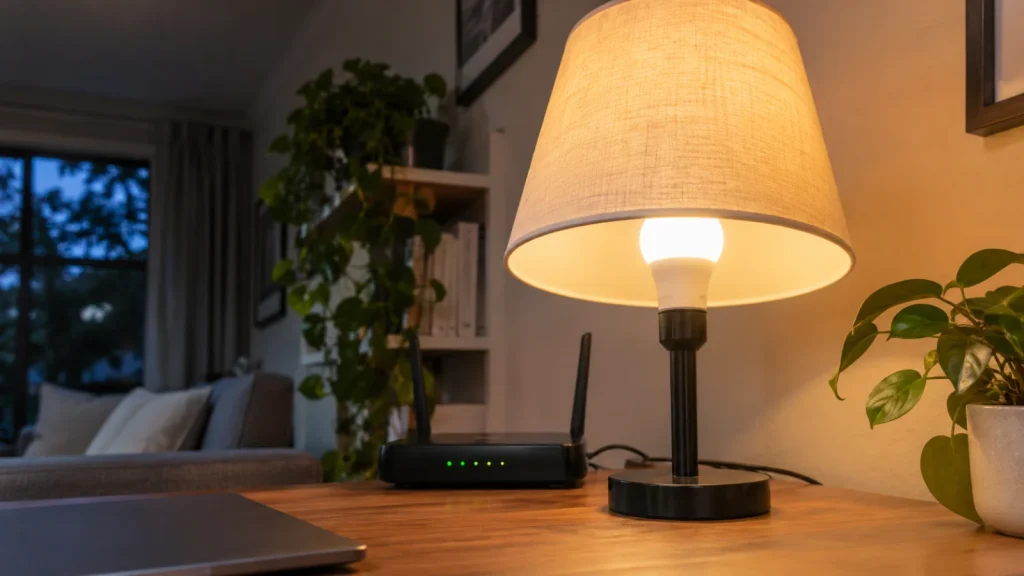
Smart bulbs usually go offline for one of three reasons: someone switched them off at the wall, the Wi-Fi signal where the bulb sits is weak, or the router is moving the bulb to a network band it cannot use. I always check the wall switch first, then signal strength, then the router’s 2.4GHz settings.
I’ve ordered the steps below from the quickest check to the more involved ones. I’d work through them in order and stop when the bulb stays connected.
Quick diagnosis
| What you see | Most likely cause | Go to |
|---|---|---|
| One bulb offline, others fine | Wall switch off, weak signal at that spot, or a faulty bulb | Fixes 1, 2 and 8 |
| All bulbs offline at once | Router restart, internet outage or a service problem | Fixes 3 and 7 |
| Bulbs drop out at random times | Band steering, a crowded Wi-Fi channel or too many devices | Fixes 4 and 5 |
| Offline after a power cut | Bulbs restarted before the router was ready | Fix 3 |
| Works in the app, not by voice | The link between the bulb’s app and the voice assistant | Fix 6 |
1. Make sure the bulb has power
In my view, this is the cause more often than any other. A smart bulb needs power all the time to stay connected. If someone turns the lamp or wall switch off, the bulb disappears from the app until power returns.
My fix is to leave the switch on and turn the light off in the app or by voice. If other people in the house keep using the switch, put a switch cover over it or add a stick-on wireless remote beside it. My guide to smart bulbs vs smart switches covers this problem and its fixes in detail.
2. Check the Wi-Fi signal at the bulb
Bulbs have small antennas and often sit inside metal or glass fittings that block signal. A quick test I use: stand next to the light with your phone on the same network. If your phone shows one or two bars, the bulb is struggling too.
- Move the router to a more central, raised position if you can.
- Add a mesh point or extender between the router and the room.
- Try the bulb in a lamp closer to the router to confirm signal is the issue.
3. Restart in the right order
After a power cut or router update, bulbs can come back before the network does and fail to reconnect. I’d restart the router, wait until Wi-Fi is fully working, then switch the bulb off at the wall for ten seconds and back on. One clean off-and-on is enough. Flicking the switch several times puts many bulbs into pairing mode and wipes their settings.
4. Sort out the 2.4GHz band
Most Wi-Fi smart bulbs connect on 2.4GHz only. Many routers broadcast 2.4GHz and 5GHz under one name and steer devices between them, which can confuse bulbs.
- In the router settings, check that 2.4GHz is switched on.
- If dropouts continue, give the 2.4GHz band its own network name, or turn on the router’s separate network for smart devices if it offers one, and connect the bulbs to that.
- Use WPA2, or a mixed WPA2 and WPA3 mode. Some older bulbs cannot join a WPA3-only network.
5. Reduce congestion
The 2.4GHz band is crowded in apartments and busy homes. I’d set the router’s 2.4GHz channel to 1, 6 or 11, picking whichever is least used nearby, and set channel width to 20MHz. If you have dozens of Wi-Fi devices on an older router provided by your internet company, the router may be the limit; a newer router or mesh system handles more connections.
6. Fix the voice assistant link
If the bulb works in its own app but Alexa or Google says it is not responding, I’d look at the connection between the two services. In the assistant’s app, disable the bulb brand’s skill or linked service, enable it again, sign in, and run device discovery. Remove any duplicate or old entries for the same bulb.
7. Update, then check for an outage
I’d update the bulb’s firmware and the app first; makers fix connection bugs this way. If every bulb from one brand went offline together and your internet is working, I’d check the maker’s status page or social accounts before changing anything. Cloud outages resolve themselves, and resetting bulbs during one only creates work.
8. Reset and re-add the bulb
If one bulb still drops out, remove it from the app, factory reset it using the maker’s switch-on and switch-off pattern, and set it up again close to the router. If it stays connected there but not in its usual fitting, signal is the cause. If it fails everywhere, the bulb is likely faulty; contact the seller while it is under warranty.
9. Reserve an address for each bulb
Your router hands out network addresses to devices as they connect. On some routers, especially older or internet-provider models, bulbs occasionally lose their address or receive a new one and fail to reconnect cleanly. In the router’s settings, look for DHCP reservation or address reservation and assign a fixed address to each bulb’s MAC address, which you can usually find in the bulb’s app under device information. I think it is a small change that fixes a surprising number of stubborn dropouts.
10. Look for interference
The 2.4GHz band is shared with microwave ovens, older cordless phones, baby monitors, Bluetooth devices and some wireless video senders. If bulbs drop out at particular times, such as when the microwave runs, interference is the likely cause. I’d move the router away from these devices, change the 2.4GHz channel, and avoid placing bulbs inside heavy metal fittings or directly behind large appliances and mirrors, which reflect and block signal.
Brand-specific tips
Most of the fixes above apply to every Wi-Fi bulb, but a few brands have quirks I think are worth knowing.
- Philips Hue: Hue bulbs can run on Bluetooth alone or through the Hue Bridge, which uses Zigbee. Bluetooth-only setups have short range and limited remote control. If Hue bulbs seem unreliable, adding a Bridge usually solves it, because the bulbs then form their own mesh network.
- Kasa and Tapo (TP-Link): these Wi-Fi bulbs are sensitive to band steering on some routers. Giving them a dedicated 2.4GHz network often stops dropouts. Keep the Kasa or Tapo app updated, as connection fixes arrive through firmware.
- Govee: some Govee products connect by both Bluetooth and Wi-Fi. If a bulb shows as connected only when your phone is nearby, it may have fallen back to Bluetooth; re-run Wi-Fi setup.
- WiZ: WiZ bulbs can be controlled locally in some situations, but voice assistants depend on WiZ’s cloud. If voice control fails while the app works, re-link the WiZ skill or service.
- GE Cync: Cync bulbs can use Bluetooth, direct Wi-Fi or a mesh of Cync devices. Mixed setups occasionally confuse the app; removing and re-adding problem bulbs usually helps.
- Matter bulbs: when added through Matter, bulbs talk to your controller locally. If a Matter bulb goes offline, check the controller, such as your smart speaker or hub, is online and nearby.
Mesh Wi-Fi and smart bulbs
Mesh systems are one of the best fixes for weak signal, but they can introduce their own issues for smart bulbs. Mesh nodes sometimes move devices between access points, and some bulbs handle that badly. If dropouts begin after installing mesh, these are the settings I’d try: enable a dedicated IoT or 2.4GHz network if your mesh supports it, turn off features that aggressively steer devices between bands, and place a node within good range of rooms with many bulbs. Most modern mesh systems also offer a compatibility mode for smart home devices.
When to switch away from Wi-Fi bulbs
Wi-Fi bulbs are simple to start with, but they each take a connection on your router. In homes with twenty or more bulbs, I think a Zigbee or Thread system is usually more reliable. These bulbs form a mesh network among themselves, so every bulb strengthens the network rather than competing for router capacity. They need a hub or a compatible smart speaker, and they tend to respond faster. If you find yourself constantly troubleshooting Wi-Fi bulbs, I’d migrate gradually, starting with the rooms that cause the most trouble.
A quick troubleshooting checklist
This is the checklist I’d keep handy the next time a bulb drops out. Work down it in order; most problems are solved in the first three lines.
- Is the wall switch or lamp switch on?
- Are other devices on the same Wi-Fi network working?
- Is the bulb within good 2.4GHz range of the router or a mesh node?
- Did the router restart or update recently? If so, power-cycle the bulb once.
- Is 2.4GHz enabled, and is the bulb on a network without aggressive band steering?
- Does the bulb work in its own app but not by voice? Re-link the voice assistant.
- Is the maker’s service having an outage?
- Does the bulb have a reserved address on the router?
- Is anything nearby causing interference?
- Does the bulb still fail after a reset next to the router? If so, replace it under warranty.
Keeping a growing smart home stable
Offline bulbs are often the first sign that a home network is reaching its limits. As you add plugs, cameras, speakers and bulbs, each one takes a connection on the router. These are the habits I’d use to keep things stable: name devices clearly so you can spot which one has dropped, keep firmware updated across all devices, avoid buying many different brands that each need their own cloud service, and consider moving lighting to a hub-based system once you pass a couple of dozen bulbs. Planning your network for the number of devices you will have next year, not just today, saves a great deal of troubleshooting.
How to stop it happening again
- Keep the router’s network name and password the same when you replace it, so bulbs reconnect without being set up again.
- Do not use smart bulbs on a dimmer switch unless both makers approve it. Dimmed power causes dropouts and flicker.
- Check the fitting. Fully enclosed fixtures trap heat and block signal. Use bulbs rated for enclosed fittings where needed.
- For a large number of lights, consider a hub-based system. Zigbee or Thread bulbs form their own mesh and take the load off Wi-Fi. My Matter vs Zigbee vs Z-Wave comparison explains how.
When to contact support or return the bulb
If a bulb still drops offline after you have confirmed power, strong signal, correct router settings and a fresh reset next to the router, the bulb itself is the likely problem. Before contacting the maker, I’d note the model, firmware version and the steps you have already tried; it saves time and avoids being asked to repeat the basics. Most smart bulbs carry at least a one-year warranty, and many retailers accept returns within their own return window. A replacement bulb that behaves normally in the same fitting confirms the original was faulty. If several bulbs from the same batch misbehave in the same way, mention it, as it may point to a firmware issue the maker can fix.
The short version
Here is my bottom line. Leave the wall switch on, give the bulb a decent 2.4GHz signal, and restart the router before the bulb. In my view, those three steps solve most cases. I’d reset the bulb only after ruling out power, signal and outages.
Frequently asked questions
Why does my smart bulb say offline when the light is on?
The bulb has power but has lost its network connection. It behaves like an ordinary bulb until it reconnects. Start with fixes 2 to 4.
Do smart bulbs work if the internet is down?
Some functions can, depending on the bulb and how it is controlled. My guide to smart home devices without internet explains what keeps working.
Can too many smart bulbs slow my Wi-Fi?
Each bulb uses very little data, but every connected device takes a slot on the router. Older routers can run out of capacity and start dropping devices.
Is it worth replacing a bulb that keeps dropping?
If it fails even next to the router after a reset, I’d say yes. See my best smart light bulbs under $20 for affordable replacements.
Why do my bulbs turn on by themselves after a power cut?
Most smart bulbs default to turning on when power returns, so they behave like ordinary bulbs if the network is down. Many apps include a “power-on behavior” setting that lets you choose whether the bulb returns to its last state or stays off.
Will a new router fix my offline bulbs?
It can, particularly if your current router is old, struggles with many connected devices or does not let you separate the 2.4GHz band. Before buying one, I’d try the free fixes above. If you do replace the router, use the same network name and password so your bulbs reconnect automatically.
Can heat make smart bulbs disconnect?
Yes. Bulbs in enclosed fittings can overheat, and electronics behave unpredictably when hot. Use bulbs rated for enclosed fixtures, or move the bulb to an open fitting to test.

Abdullah Khan
Smart Home WriterKhan is the smart home writer behind Smart Space Advisor. He is an IT engineer and tech blogger with a knack for making complex technology easy to understand, and he brings hands-on experience solving real-world technical problems to every guide. He covers smart security, video doorbells, smart plugs, lighting and platforms including Matter, Alexa, Google Home and Apple Home, and he labels his recommendations as research-based unless he has used a product himself.